
Updated on 24 September 2026
How to add documents and invoices to Ubyquo
Bring in invoices by dragging them, selecting them manually or importing them in the background with Ubyquo Import.
The Ubyquo Documentos (Documents) module lets you add invoices and other documents to the corresponding fiscal year using different methods: drag and drop, manual selection, or background import through Ubyquo Import.
Below are the steps for each method.
Method 1: Drag and drop
This method lets you add documents directly from a folder on your computer.
- Go to the Documentos tab in Ubyquo.
- On your computer, open the folder where your invoices are saved.
- Select the documents you want to add.
- Drag them to the Documentos section of the corresponding fiscal year.
Method 2: Adding documents manually
This method lets you select the documents and set their details before adding them.
- Go to the Documentos tab.
- Click Añadir (Add).

- Select the documents from your computer's file system.
- In the window that opens, check or adjust the following fields:
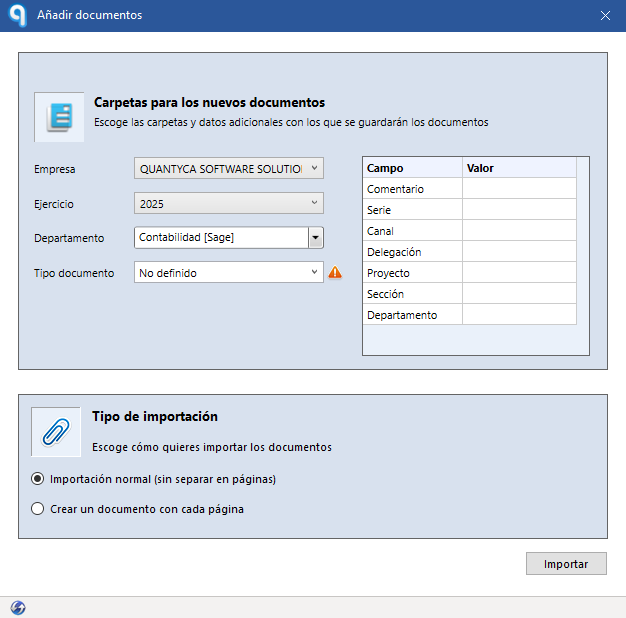
- — Empresa (Company)
- — Ejercicio (Fiscal year)
- — Departamento (Department)
- — Tipo de documento (Document type)
- If you need to, also fill in the following optional fields:
- — Campos de Analítica (Analytics fields)
- — Comentarios (Comments)
- Under Tipo de Importación (Import type), select one of the following options:
- — Importación Normal: (Normal import) adds the documents as they are, without splitting their pages.
- — Crea un documento con cada página: (Create one document per page) splits the document and creates a separate document for each page.
Method 3: Importing documents with Ubyquo Import
This method lets you add documents in the background through the UbyquoImport service.
Important: To use this method, the UbyquoImport service must be running correctly.
- Click the Ubyquo icon in the system tray, next to the clock.

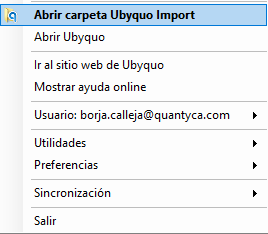
- Open the Contabilidad [ERP/Programa contable] folder (Accounting [ERP/accounting software]).
- Browse the folder structure until you find the corresponding location:
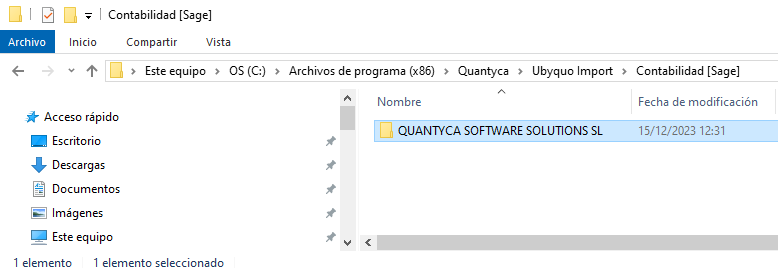
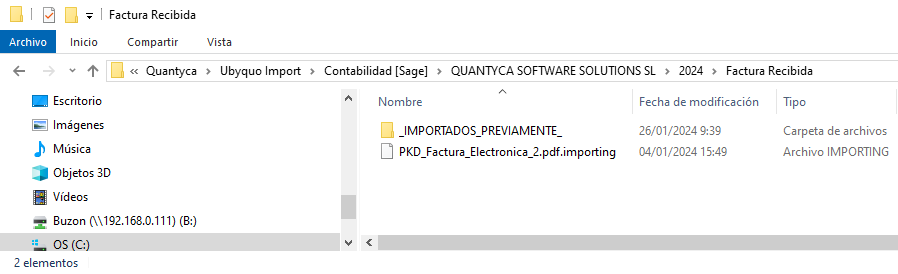
- — Empresa (Company)
- — Ejercicio (Fiscal year)
- — Tipo de documento (Document type)
- Drag the documents directly into the corresponding folder.
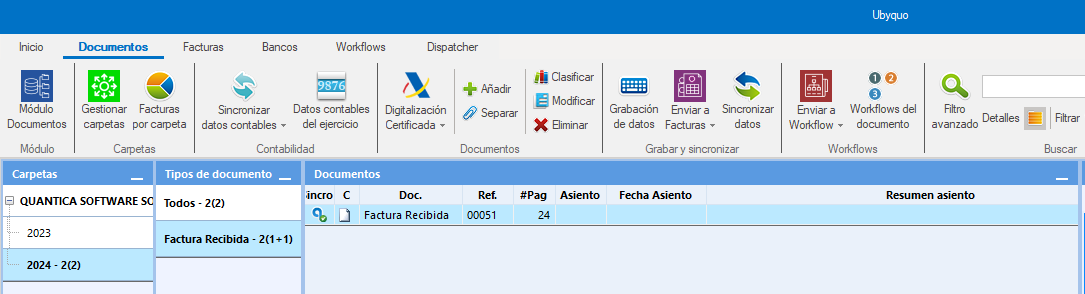
Checking that the documents have been added
Once added, the documents will appear in the Documentos tab in Ubyquo.
To identify them, look for the white page icon in the C column.