
Updated on 24 September 2026
How to send invoices to automatic posting in batches
Select several invoices and send them in a batch to automatic posting from Documents.
From the Documentos (Documents) tab in Ubyquo you can select several invoices and send them to Facturas (Invoices) to process them as a batch through Contabilización Automática (Automatic posting).
Select the invoices
- Go to the Documentos tab.
- Select the invoices you want to send to automatic posting.
Send the invoices to automatic posting
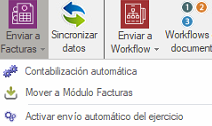
- Click Enviar a Facturas (Send to Invoices).
- Select the Contabilización Automática option.
Set up the posting process
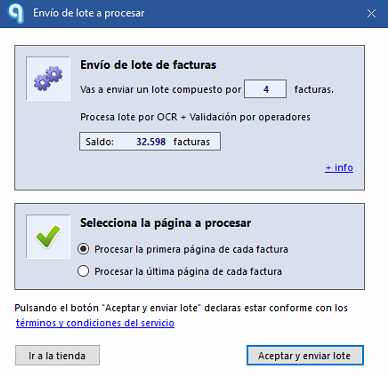
The Contabilización (Posting) screen will open, divided into two sections:
- Upper part: shows the number of invoices sent and the balance available for posting.
- Lower part: lets you choose whether to process the first page or the last page of each document.
Check that the batch was sent
The invoices will move automatically to the Facturas tab.
During the process, a window will appear at the bottom of the screen showing the progress of the batch.

Check the batch status
When the Estado (Status) field shows Procesando lote (Processing batch), the submission will have finished successfully.

Important
Do not close Ubyquo during the process.
Wait until the date appears next to the status “Procesando lote”. This ensures that the data extraction has been carried out correctly.
If the batch is not sent
Check the following points:
- Make sure no invoice is larger than 4 MB.
- Check that there has been a recent synchronization of the chart of accounts.
Once you have made these checks, try sending the invoices to Contabilización Automática again.