
Updated on November 13, 2026
How to move invoices from Accounting back to Purchasing
Guide to return a purchase invoice that is in Accounting, in the To be posted status, to the Purchasing module.
When to use this procedure
When a purchase invoice is in Contabilidad (Accounting), in the «Por contabilizar» (To be posted) status, and you need to keep managing it from the Compras (Purchasing) module.
- 1
Return the invoice to the Documents tab
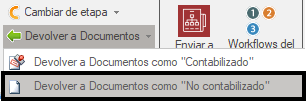
In the Contabilidad (Accounting) module, select the invoice or invoices you want to return. In the top bar of the list, open «Devolver a Documentos» (Return to Documents) and choose «Devolver a Documentos como "No contabilizado"» (Return to Documents as "Not posted").
- 2
Classify the invoice
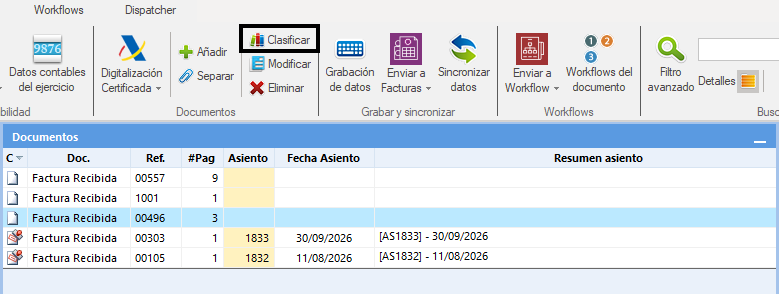
On the «Documentos» (Documents) tab, select the invoice again and click «Clasificar» (Classify) in the top bar of the list.
- 3
Set the department and the process
In the «Clasificador de documentos» (Document classifier) window, select the «Pedidos | Albaranes» (Orders | Delivery Notes) department and then choose the process the invoice belongs to.
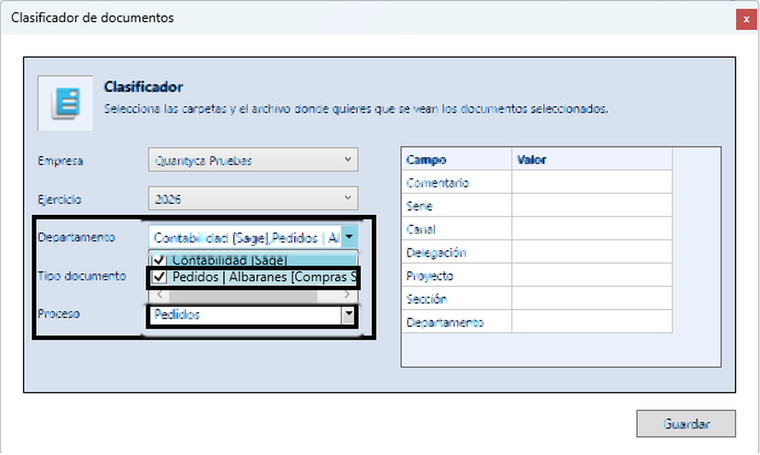
Important: before continuing, check that the selected department is «Pedidos | Albaranes» (Orders | Delivery Notes) and that you have chosen the right process.
- 4
Go back to the Purchasing module
Open the drop-down menu at the top right of Ubyquo and select «Compras» (Purchasing).
More information: How to switch between the Purchasing and Accounting modules.
- 5
Find the invoice under No orders and send it to extraction
In the Compras (Purchasing) module, select «Sin pedidos» (No orders) in the Pedidos (Orders) list. There you will find the invoice you returned. If the document has already been through the reading process, send it to extraction again manually. If it has not been through that process yet, it will be sent to extraction automatically.
