
Updated on October 9, 2026
Ubyquo does not export journal entries to Sage
Check the Sage installation path or set up the database connection again.
If Ubyquo does not export journal entries to Sage, the problem may lie in the Sage installation path or in the database connection settings. Follow the option that matches the error you see.
Option 1 Connection error: check the Sage ERP path
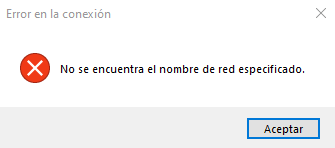
- 1
Make a backup
Before changing anything, make a backup of the Sage configuration file.
- 2
Open SageSpainERP.config
In File Explorer, go to %ProgramData% (usually
C:\ProgramData) and open the SageSpainERP.config file. - 3
Check the server path
Find the
<PathServer>node and check that it contains a valid path to the actual location of the server where Sage is installed, for example:<PathServer>\\SERVIDOR\Sage Murano\</PathServer>
Option 2 SqlTransaction error: set up the connection again
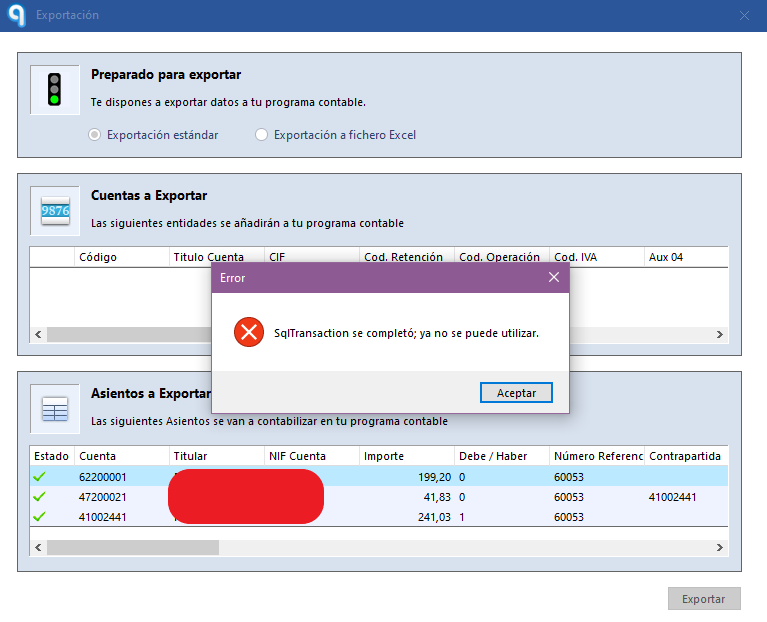
- 1
Delete the connection file
In the Ubyquo installation path, find the Conexion_BBDD.config file and delete it. Ubyquo will ask for the database connection settings again.
- 2
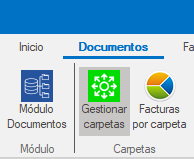
Open “Gestionar carpetas”
Open Ubyquo and go to Documentos > Gestionar carpetas (Documents > Manage folders).
- 3
Change the data connection
Select Cambiar conexión a datos (Change data connection).

- 4
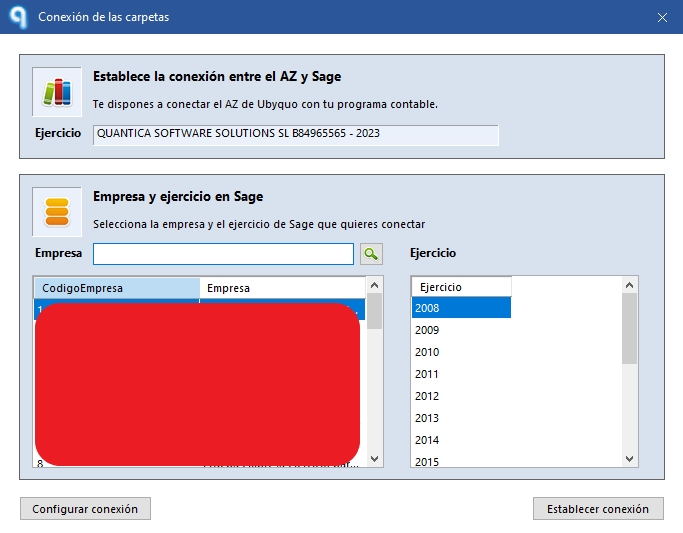
Click “Configurar conexión”
Click Configurar conexión (Configure connection).
- 5
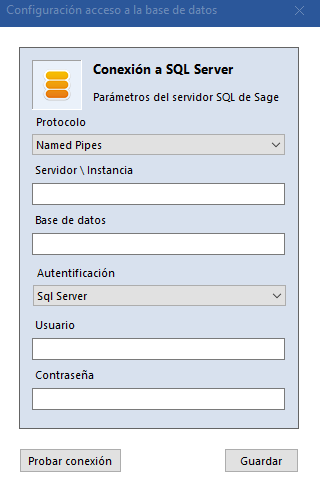
Test and save
Keep the configured SQL user, enter the new password if it has changed and click Probar conexión (Test connection). If the test succeeds, click Guardar (Save).
Check the export
Export the journal entries again
With the database connection now working, export the journal entries from Ubyquo again and check that they reach Sage correctly. If the connection is set up properly, Ubyquo will be able to communicate with the Sage database again and export the journal entries.