
Updated on September 23, 2026
Import only my data with Sage's Import Manager
Duplicate the import guides so each user imports only their own Excel file.
When several users use Sage's Import Manager to import data from Excel files generated by Ubyquo, by default the files of all configured users can be used.
If you want each user to import only their own Excel file, you can duplicate the import guides and set the corresponding document name in each one.

Duplicating the import guides
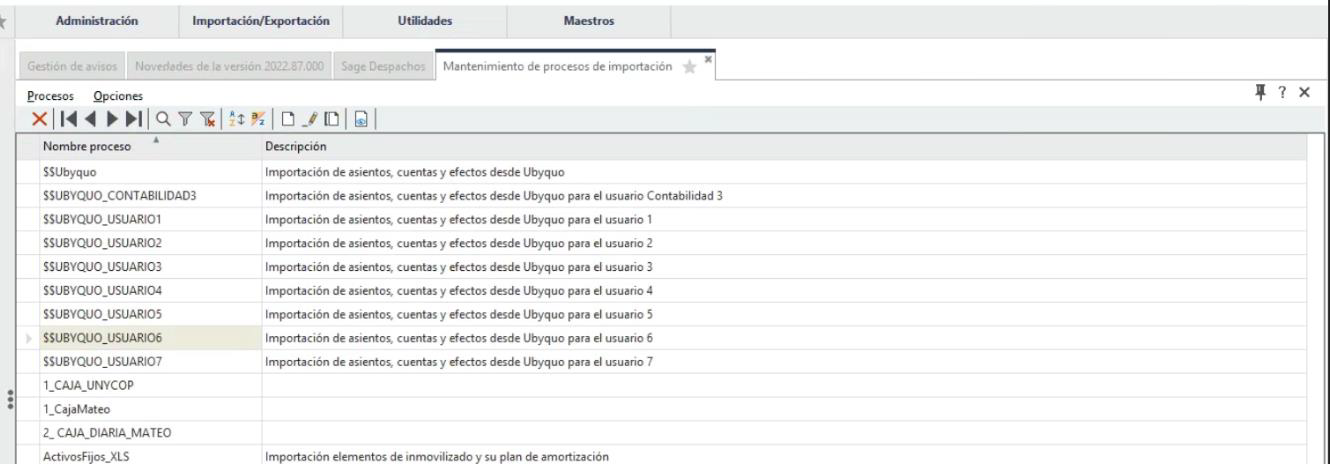
- Go to the section of Sage where the import guides are managed.
- Find the import guide you currently use.
- Duplicate the guide as many times as there are users who need to run an individual export.
- Give each duplicated guide a specific, descriptive name that identifies the corresponding user.
Setting the document name
In each of the duplicated guides:
- Find the Nombre del documento (Document name) field, or the field for the expected file name.
- Enter the exact name of the Excel file the user will generate.
For example:
Datos_Ubyquo XXXX.xlsx
It is important that the name set in the guide matches the name of the Excel file generated by the user.
This way, each import guide is tied to its corresponding file, and the import will not pick up other users' files.
Expected result
Once you have set up a guide for each user, each of them can run their own import using only their Ubyquo Excel file.
This keeps each user's imports separate and prevents data from different files getting mixed up.