
Updated on September 23, 2026
Ubyquo does not perform the direct export to Sage
Check the connection path, the Named Pipes protocol and the status of Sage to be able to export again.
If Ubyquo does not perform the direct export to Sage, check the database connection settings and the status of Sage.
These checks help identify problems related to the connection path, the protocol used or a pending Sage update.
Checking the connection path
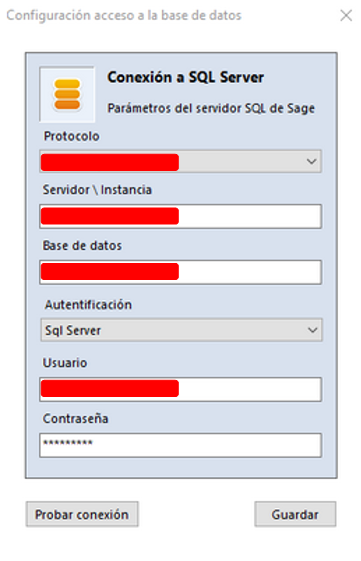
- Open the connection settings in Ubyquo.
- Check the Nombre del servidor (Server name) field used to connect to the Sage database.
- Make sure the server name matches the actual SQL server.
- Avoid using incorrect IP paths or aliases.
Using Named Pipes as the connection protocol
For the connection with Sage, we recommend using Named Pipes.
The path must use the format that corresponds to the server and the instance, for example:
\\servidor\nombre_instancia
Using TCP/IP with a port can cause errors during the direct export, even when the connection test says the connection is fine.
Do not specify a port with TCP/IP
If you use TCP/IP as the connection protocol, do not specify a port number in the connection string.
Check the settings and remove the port if one is defined.
Checking the status of Sage
Check that Sage does not show update notices when it starts.
If there is a pending update, or one that did not complete properly:
- The database may be locked.
- Ubyquo may not be able to access the database properly.
- The direct export may not run correctly.
Before exporting again from Ubyquo, make sure Sage starts properly and shows no pending update.
Checking the export
Once you have reviewed these points:
- Check the connection settings in Ubyquo again.
- Make sure the server and the protocol are correct.
- Make sure there is no pending update in Sage.
- Run the direct export from Ubyquo again.
If the settings are correct, Ubyquo will be able to communicate with the Sage database and perform the direct export.