Updated on October 9, 2026
How to delete a company or a fiscal year in Ubyquo
If you are an administrator, set the documents to “No contabilizado” and delete the fiscal year or company from Documents.
Who can do it
Only administrator users.
Before you start
There must be no posted documents: those in the fiscal year you are going to delete must be in No contabilizado (Not posted) status.
Part 1 Set the documents to “No contabilizado”
- 1
Find the documents
In the Documentos (Documents) tab, find the documents in the fiscal year you want to delete.
- 2
Change their accounting status
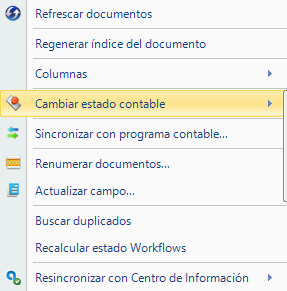
Right-click the documents and choose Cambiar estado contable (Change accounting status).
- 3
Choose “No contabilizado”
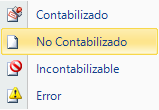
Select the No contabilizado option. Once all the documents have this status, you can delete.
Option 1 Delete a fiscal year
- 1
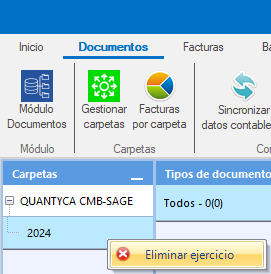
Choose “Eliminar ejercicio”
In the Documentos tab, right-click the fiscal year you want to delete and select Eliminar ejercicio (Delete fiscal year).
Option 2 Delete a whole company
- 1
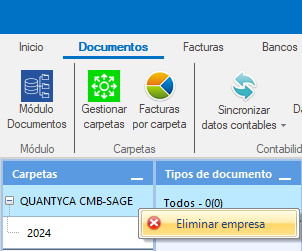
Choose “Eliminar empresa”
In the Documentos tab, right-click the company you want to delete and select Eliminar empresa (Delete company).
Keep in mind that this action affects the company and the information associated with it.