
Updated on 18 September 2026
How do I add invoices in Orders & Delivery Notes?
Manually register a received invoice in Orders & Delivery Notes so you can link and allocate it later.
Adding invoices with the Orders & Delivery Notes connector
To manually add invoices linked to the Orders & Delivery Notes module, follow these steps:
1
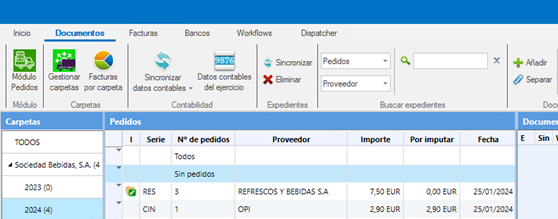
Go to the Documents module
- Go to the “Sin pedidos” (No orders) tab within the fiscal year in which you want to register the invoice.
2
Click “Añadir” (Add)
- You will find this button at the top of the screen.
3
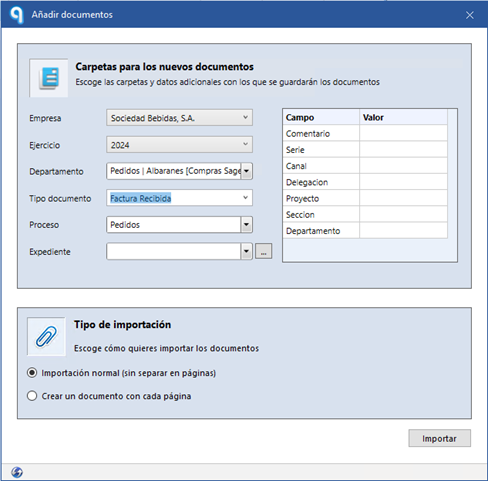
Select the document type
- In the pop-up window, choose “Factura recibida” (Received invoice) as the document type.
4
Set the required options
- Fill in the required fields: supplier, dates, amounts, and so on.
5
Click “Importar” (Import)
- This adds the invoice to the system, and it will be available to link and allocate within the purchasing cycle.