
Updated on September 24, 2026
How to match bank transactions with their journal entry and receivable/payable
Learn how to link each bank transaction to its journal entry and receivable/payable item from the editor.
Matching bank transactions (punteo) lets you link a bank transaction to its corresponding journal entry and, if there is one, to its associated receivable/payable item.
Find the bank transaction
In the Bancos (Banks) module, find the transaction you want to match.
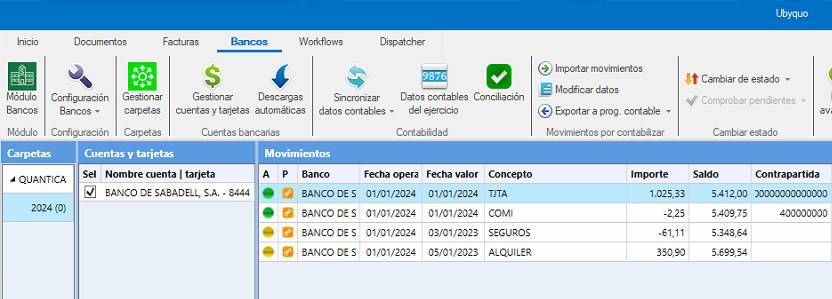
Open the Banks editor
Double-click the transaction to open the Editor de Bancos (Banks editor).
Select the transaction
In the editor, make sure you are on the correct bank transaction.
Find the journal entry
In the Sugerencias (Suggestions) section, find the journal entry you want to link to the transaction.

Important: More than one receivable/payable item cannot be linked to the same bank transaction.
Match the transaction
- At the top of the editor, click Puntear (Match).
- The journal entry and its receivable/payable item, if it has one, will be linked to the bank transaction.
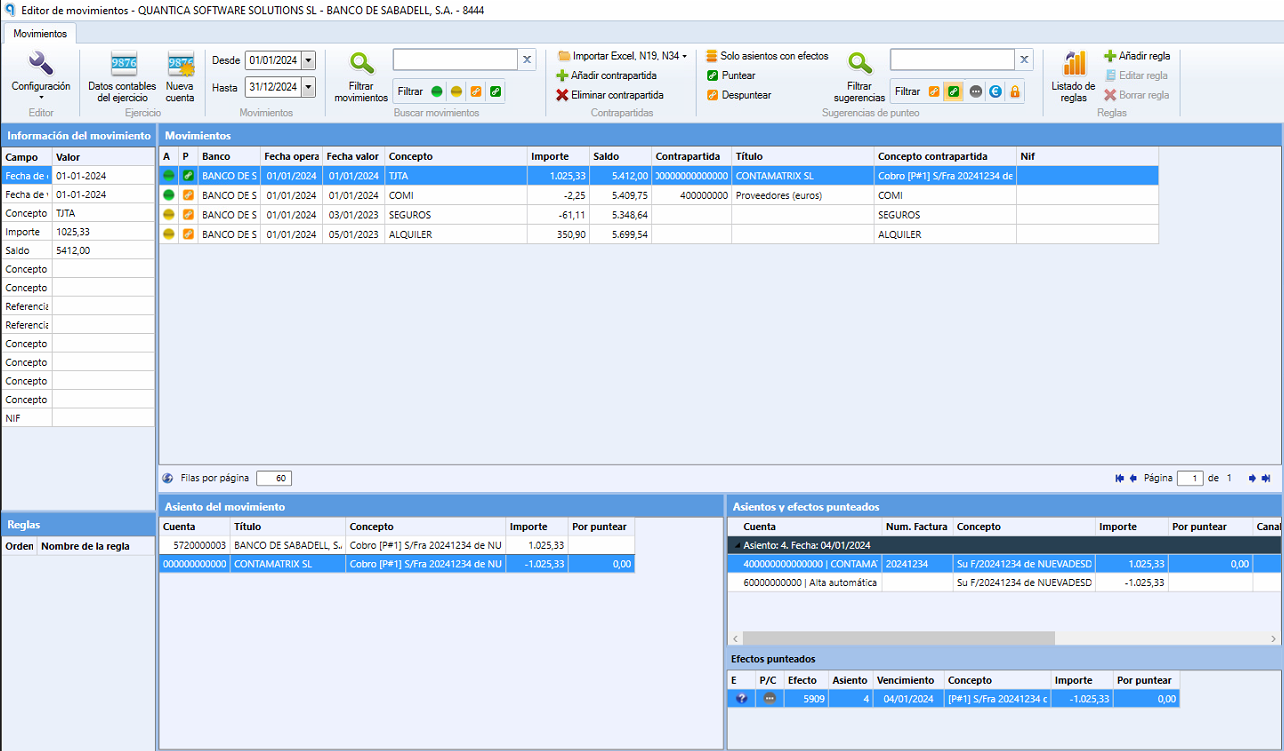
Unlink a match
If you need to correct a link, you can unlink the match at any time.
Automatic matching
Ubyquo has an automatic matching option that speeds up the reconciliation of bank transactions.
The letter P indicates the matching status. When it appears in green, it means the information is correct and complete.
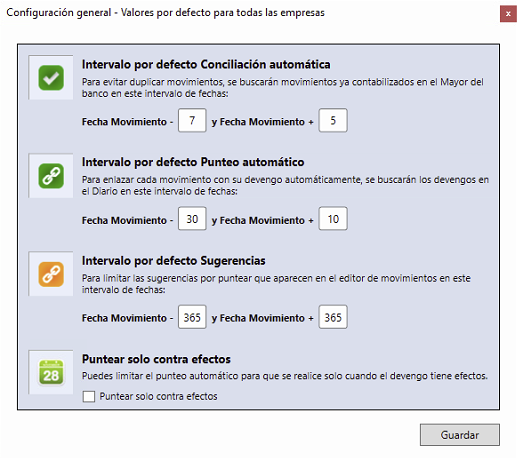
Configure general automatic matching
- Go to the Bancos tab.
- At the top left, select Configuración Bancos (Banks settings).
- Go to Configuración General (General settings).
- Select Punteo automático (Automatic matching).
- Set a suitable date range. For example, 30 days before and 30 days after.
Configure automatic matching by fiscal year
You can also configure automatic matching for a specific company and fiscal year.
- Go to Configuración del Ejercicio (Fiscal year settings).
- Select Punteo automático.
- Customize the range according to the needs of the fiscal year.
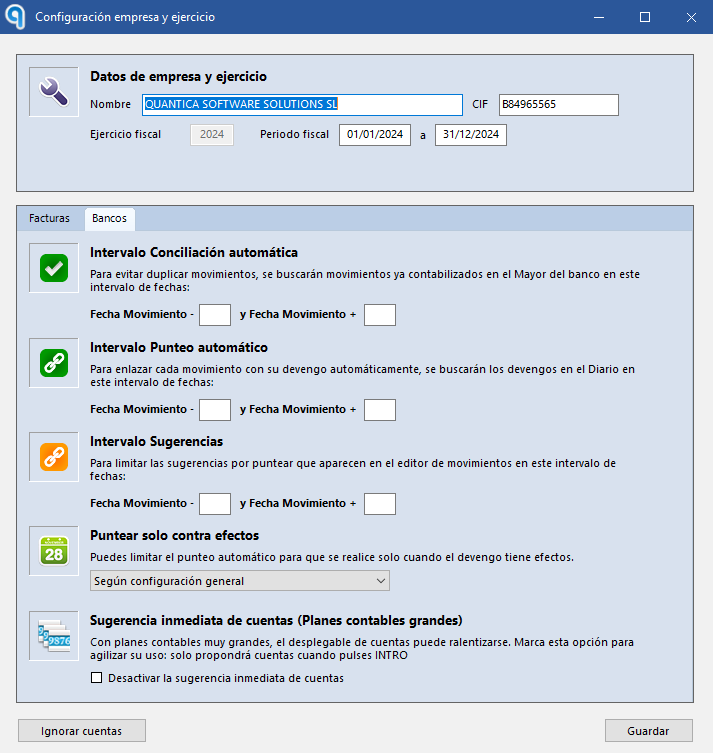
This setting is useful for operations with longer payment terms, such as 60-day payments.