
Updated on September 24, 2026
How to deactivate automatic download of bank transactions
Notify the bank of the cancellation first, using the modified mandate, and then deactivate the service.
Although deactivating the service from Ubyquo is quick, it is essential to notify the bank of the cancellation beforehand so that transactions stop being downloaded automatically.
Notify the bank of the cancellation
Before deactivating the bank in Ubyquo, you need to ask the bank to cancel the service.
Generate the cancellation mandate
- Go to the Bancos (Banks) module and open Descargas Automáticas (Automatic downloads).
- Select the relevant bank and click Datos del firmante (Signatory details).
- Enter the details of the attorney or legal representative.
- Click Imprimir mandato para el banco (Print mandate for the bank).
- Print the generated mandate.
- Modify the mandate by hand:
- — Cross out the word “Alta” (Activation).
- — Write “Baja” (Cancellation) by hand in its place.
- Hand in the modified mandate at the relevant bank branch.
Deactivate the bank in Ubyquo
Once the mandate has been delivered to the bank:
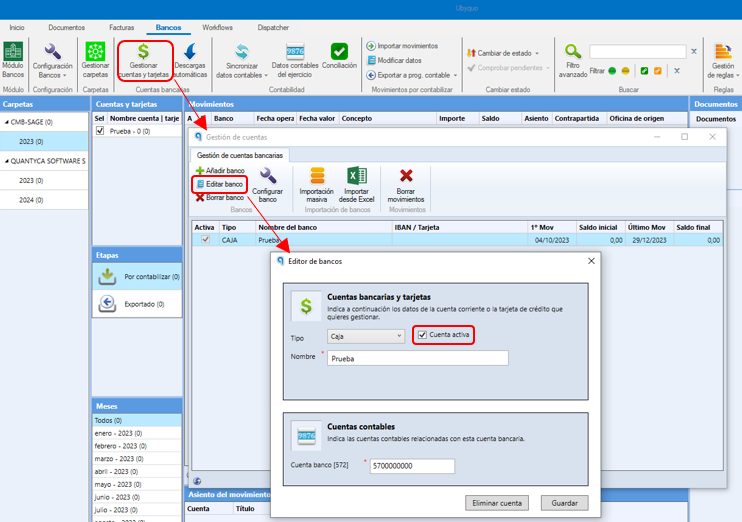
- Go to Gestionar Cuentas y Tarjetas (Manage Accounts and Cards).
- Select the relevant bank account.
- Click Editar Banco (Edit Bank).
- Uncheck the Banco Activo (Active Bank) box.
What happens when you deactivate the bank?
When you deactivate the bank in Ubyquo:
- No new automatic downloads of transactions will be made.
Important
It is essential to first notify the bank of the cancellation and only then deactivate the bank in Ubyquo.
If the bank is reactivated in Ubyquo without having properly handled the cancellation with the bank, all the transactions accumulated since the date it was deactivated will be downloaded automatically.
For this reason, always handle the cancellation with the bank first, before reactivating the account in Ubyquo.