
Updated on November 25, 2026
Contracted modules: balance, expiry and users
How to check the balance and expiry of balance-based modules and the contracted and activated users of per-user modules, extend them and download their users to Excel.
Balance-based modules
- 1
Go to Administración › «Módulos contratados»
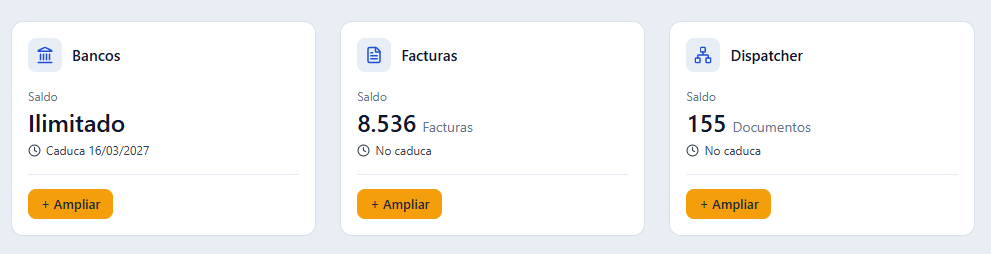
«Módulos contratados» (Contracted modules) shows one card per module. At the top are the balance-based modules: Bancos (Banks), Facturas (Invoices) and Dispatcher.
- 2
Check the balance and the expiry
Each card shows the remaining «Saldo» (Balance) and the expiry: «Caduca» (Expires) with the date, or «No caduca» (Does not expire). If the date has already passed, «(Caducado)» (Expired) appears after it.
- 3
To extend a module, click «Ampliar»
Click
 («Ampliar», Extend) on its card. The module's purchase page in the Quantyca store opens in a new browser tab.
Per-user modules
- 1
Check the cards of the per-user modules
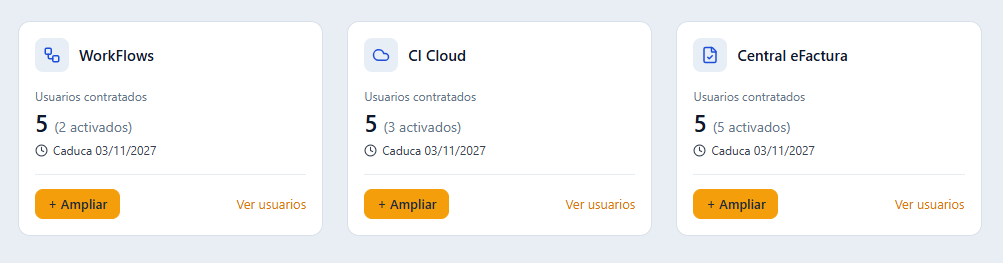
They are below the balance-based modules: WorkFlows, CI Cloud and Central eFactura. Each card shows the «Usuarios contratados» (Contracted users), with the activated ones in brackets, and the expiry.
- 2
To extend a module, click «Ampliar»
Click
 on its card. The module's page in the Quantyca store opens in a new browser tab.
- 3
Click «Ver usuarios»
Click
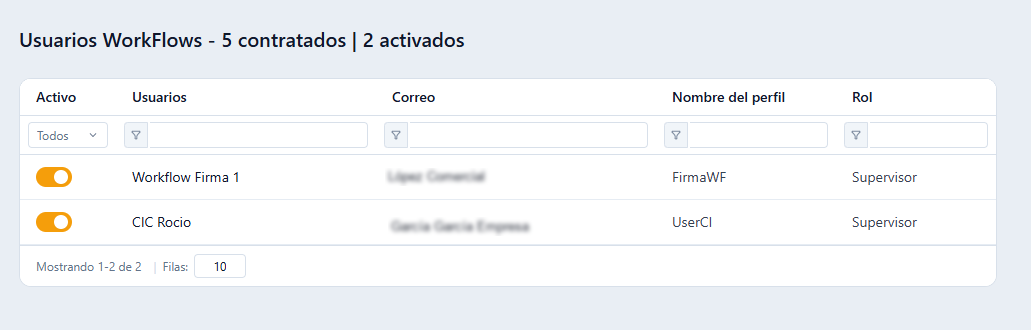
 («Ver usuarios», View users) on the module's card. «Usuarios [module] - [number] contratados | [number] activados» (Users [module] - [number] contracted | [number] activated) opens, with the module's users; the «Activo» (Active) switch shows whether each one has active access. If the module has no activated users, «No existen elementos guardados» (No saved items) appears.
- 4
To download the list, click «Exportar a excel»
Click
 («Exportar a excel», Export to Excel). An .xlsx file is downloaded with the users, their email, the profile name and the role.
- 5
Click «Volver»
«Volver» (Back) takes you back to the module cards.