
Updated on November 19, 2026
Company tax details
The «Datos fiscales» (Tax details) tab in Settings: company details, the Anti-Fraud Law (Verifactu), taxes, withholdings and the tax regime.
Check and change the company details
- 1
Open the «Datos fiscales» tab
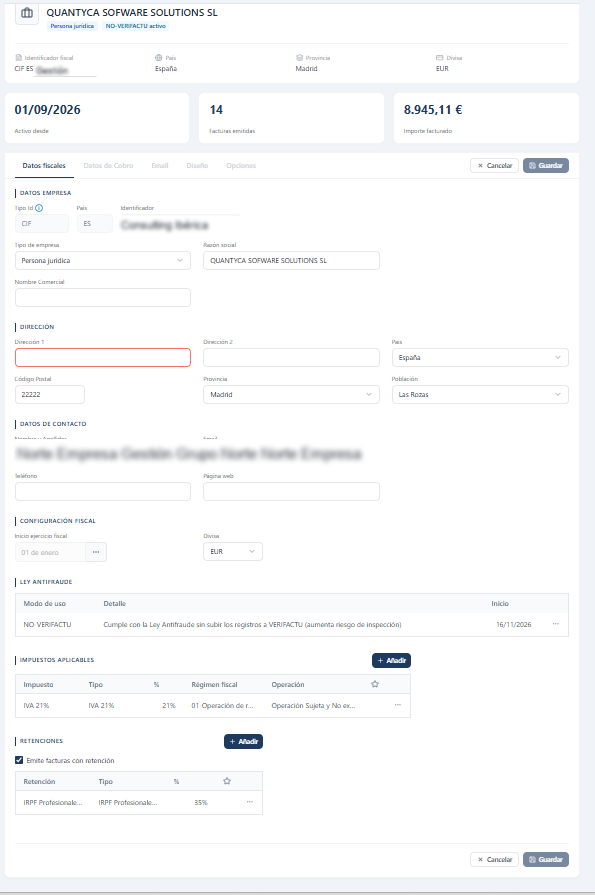
It is the tab that opens when you enter Settings. It opens in read mode, in sections: «DATOS EMPRESA» (Company details), «DIRECCIÓN» (Address), «DATOS DE CONTACTO» (Contact details), «CONFIGURACIÓN FISCAL» (Tax settings) and «LEY ANTIFRAUDE» (Anti-Fraud Law).
- 2
Click «Editar»
The fields appear, along with the «Cancelar» (Cancel) and «Guardar» (Save) buttons.
- 3
Check the mandatory fields
If one is missing, it is marked in red and «Guardar» stays disabled until you fill it in.
- 4
Fill in or correct the data
There are text fields (company name, address, phone…) and drop-downs such as «Provincia» (Province). To choose the town, type part of its name in «Población» (Town): the drop-down suggests the towns of the chosen province that contain that text.
- 5
Click «Guardar» or «Cancelar»
What you save is kept when you come back. With «Cancelar», the tab goes back to read mode with the previous data.
Anti-Fraud Law (Verifactu)
- 1
Find the «Ley Antifraude» section
Its table shows the company's current «Modo de uso» (Mode of use).

- 2
Open the row menu
With the tab in edit mode, click the button at the end of the row. The options «Activar VERIFACTU» (Turn on VERIFACTU), «Activar NO-VERIFACTU» (Turn on NO-VERIFACTU) and «Empresa exenta Ley Antifraude» (Company exempt from the Anti-Fraud Law) appear. Choose the one that applies to the company.
Before changing the mode, read what each one means: VERIFACTU, NO VERIFACTU and exempt.
Applicable taxes and withholdings
- 1
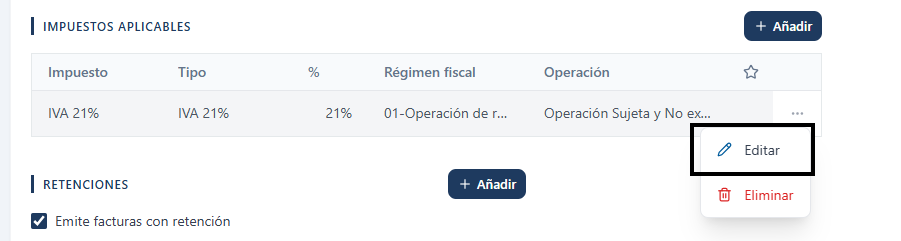
Check the «Impuestos aplicables» table
It shows the taxes the company applies («Impuestos aplicables», Applicable taxes), each with its «Régimen fiscal» (Tax regime).

- 2
Add a tax
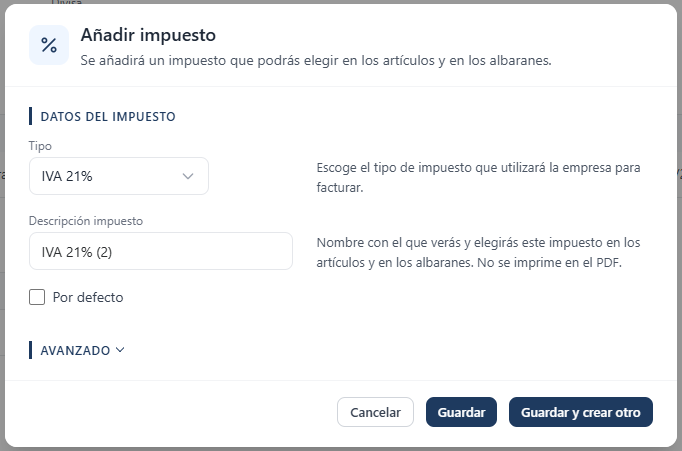
With the tab in edit mode, click «Añadir» (Add) in that table. In the «Añadir impuesto» (Add tax) window, choose the «Tipo» (Type) and check the «Descripción impuesto» (Tax description): it is the name you will see and choose the tax by in items and delivery notes (it is not printed on the PDF). Click «Guardar» (Save), or «Guardar y crear otro» (Save and create another) to add another one straight away.
- 3
Add a withholding
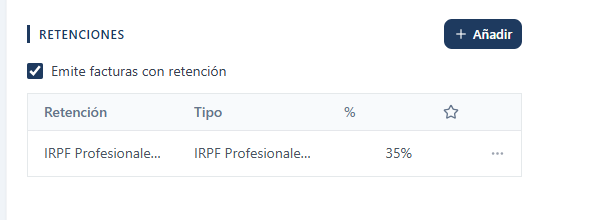
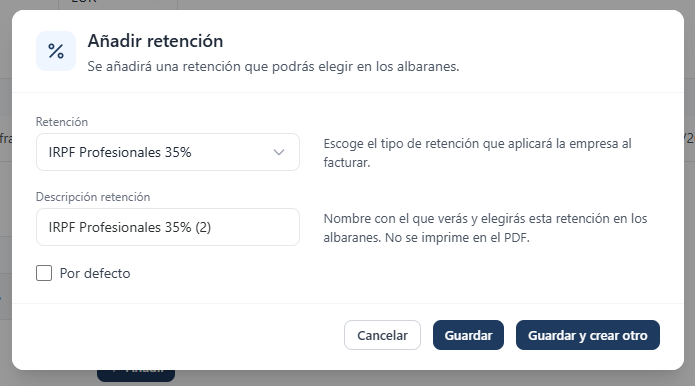
In the «Retenciones» (Withholdings) section, click «Añadir». In the «Añadir retención» (Add withholding) window, choose the «Retención» (Withholding), check its description and click «Guardar».
Change the tax regime
- 1
Edit the tax
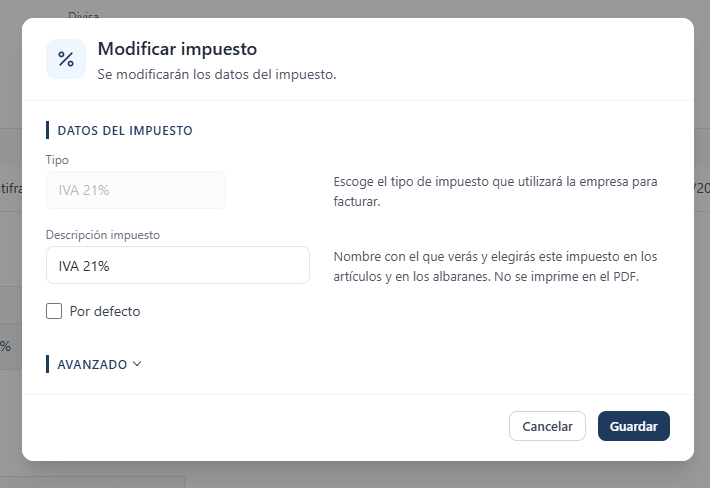
With the tab in edit mode, in the «Impuestos aplicables» table, open the actions menu of the tax row (button at the end of the row) and choose «Editar» (Edit). The «Modificar impuesto» (Edit tax) window opens.
- 2
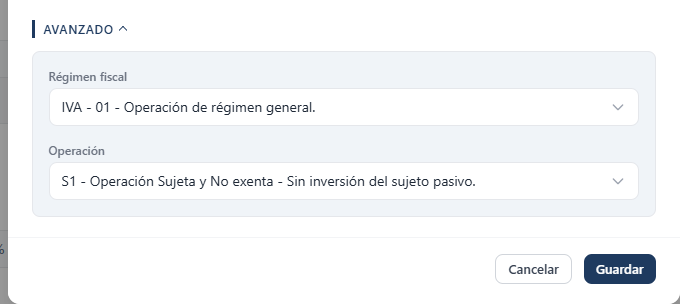
Expand «Avanzado»
The tax's «Régimen fiscal» (Tax regime) appears under «Avanzado» (Advanced).
- 3
Choose the regime and click «Guardar»
For example, «IVA - 07 - Régimen especial del criterio de caja.» (cash accounting scheme). The window closes and the table's «Régimen fiscal» column shows the new regime.
- 4
Click «Guardar» in «Datos fiscales»
When you come back to «Datos fiscales», the tax keeps the saved regime.