
Updated on November 19, 2026
Adding customers of different types (individual, company, public administration or foreign)
How to create a customer in the Invoicing tool according to its type: individual, legal entity, public administration or foreign customer.
Add an individual customer
- 1
Click «Nuevo cliente»
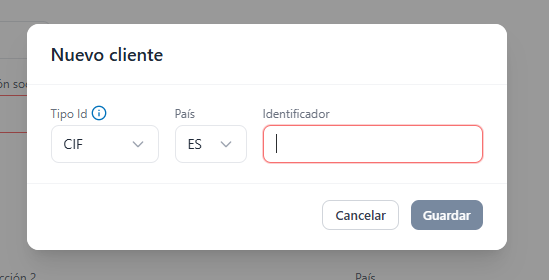
On the Invoicing tool's «Clientes» (Customers) tab. The «Nuevo cliente» (New customer) window opens, with «Tipo Id» (ID type), «País» (Country) and the «Identificador» (Identifier).
- 2
Enter the tax ID and click «Guardar»
For a Spanish customer, leave «CIF» in «Tipo Id» and «ES» in «País». The customer form opens («Guardar», Save).
- 3
In «Tipo de empresa», choose «Persona física»
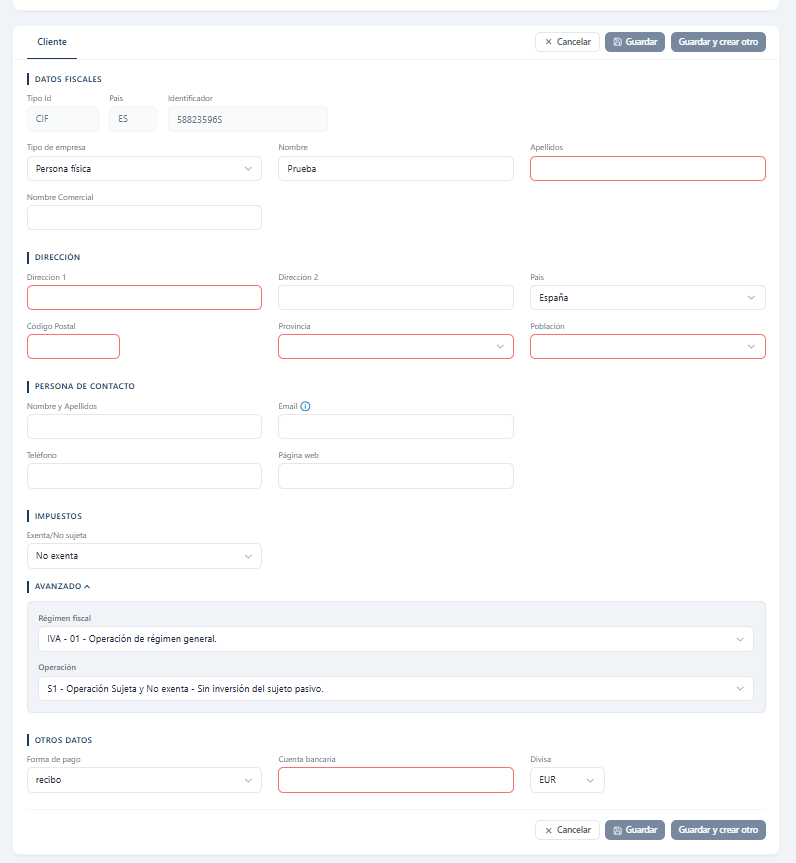
With «Persona física» (Individual) as the «Tipo de empresa» (Company type), the form asks for «Nombre» (First name) and «Apellidos» (Surnames) instead of «Razón social» (Company name).
- 4
Fill in the customer details
Mandatory fields are marked in red and «Guardar» is not enabled until they are all filled in. «Dirección 1» (Address 1) is the street and number, and «Dirección 2» (Address 2) the floor or flat, if needed. Choose the «Provincia» (Province) first and then the «Población» (Town): the drop-down suggests the towns of that province. «Persona de contacto» (Contact person) takes the contact's name, «Email», «Teléfono» (Phone) and «Página web» (Website), and «Cuenta bancaria» (Bank account) the customer's IBAN.
First name and surnamesTrade nameAddressProvince and townPostcodeContact personBank account - 5
Click «Guardar»
The customer is saved and its record opens.
- 6
Click «Volver a clientes»
The customer appears in the list («Volver a clientes», Back to customers).

Add a legal entity customer (company)
- 1
Click «Nuevo cliente», enter the company tax ID and click «Guardar»
As with an individual, but with the company's tax ID (CIF).
- 2
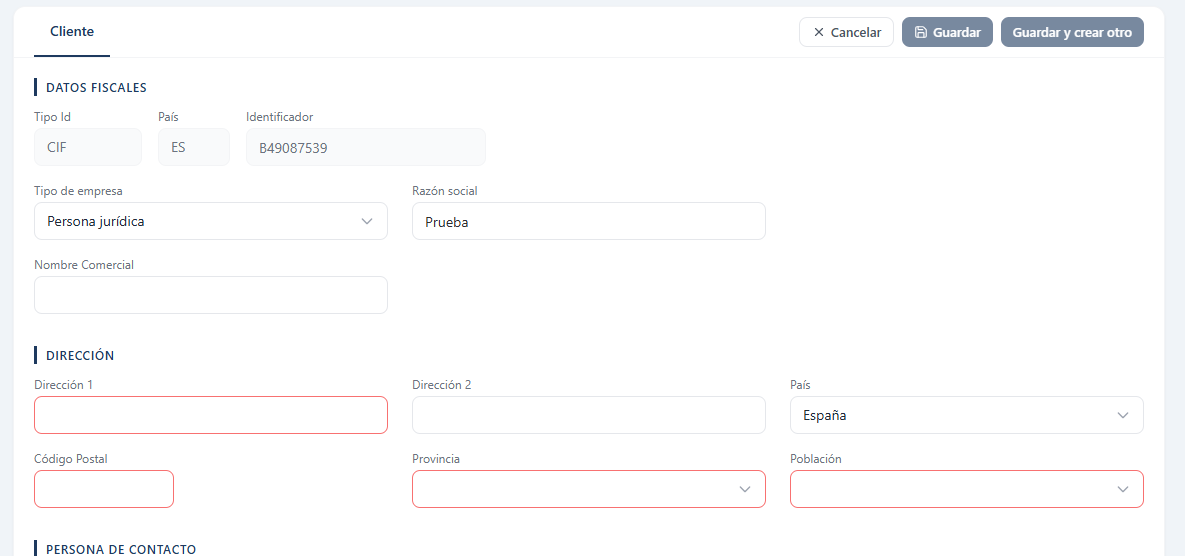
In «Tipo de empresa», choose «Persona jurídica»
With «Persona jurídica» (Legal entity), the form asks for «Razón social» (Company name) instead of «Nombre» and «Apellidos».
- 3
Enter the company name and the rest of the details
As when adding an individual.
- 4
Click «Guardar»
The customer is saved and its record opens. When you go back to customers, it appears in the list.

Add a public administration customer
- 1
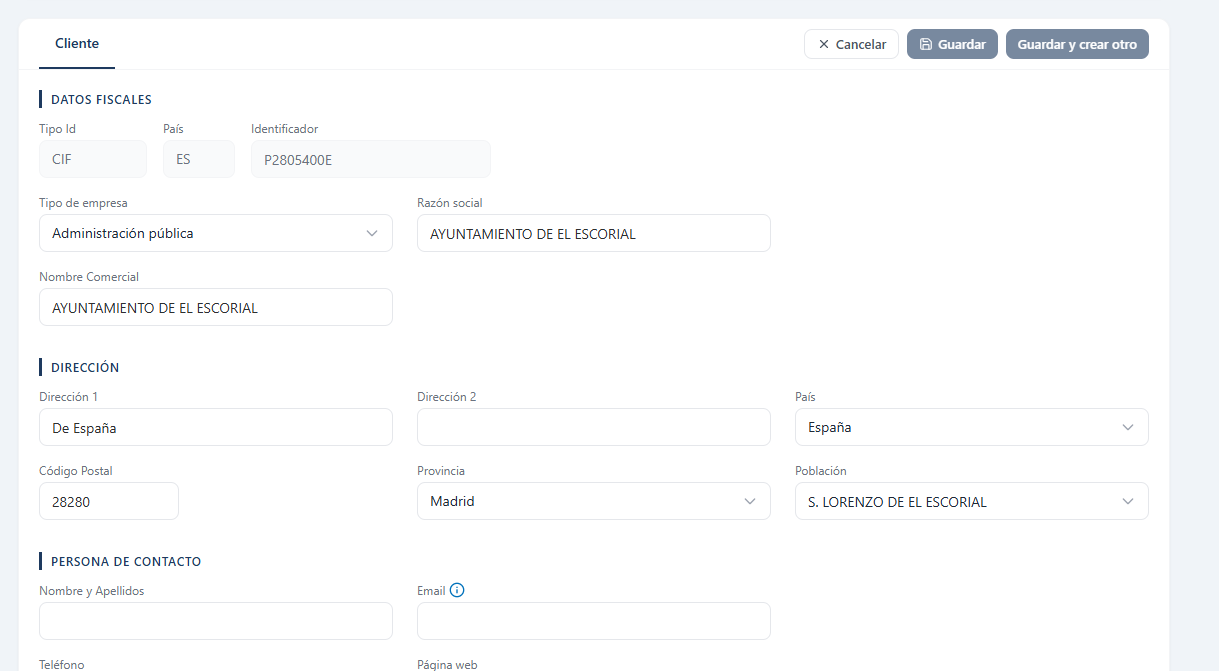
Choose «Administración pública» in «Tipo de empresa»
Follow the steps for a legal entity, but with this company type («Administración pública», Public administration).
- 2
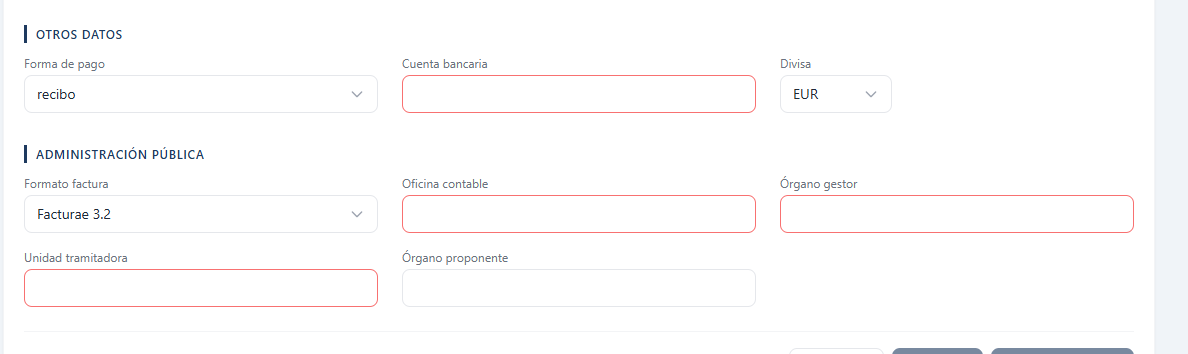
Fill in the DIR3 codes
In the «Administración pública» section, fill in «Oficina contable» (Accounting office), «Órgano gestor» (Managing body) and «Unidad tramitadora» (Processing unit): these are the body's DIR3 codes. That section also has the «Formato factura» (Invoice format), for example «Facturae 3.2».
- 3
Click «Guardar»
The customer appears in the list.

Add a foreign customer
- 1
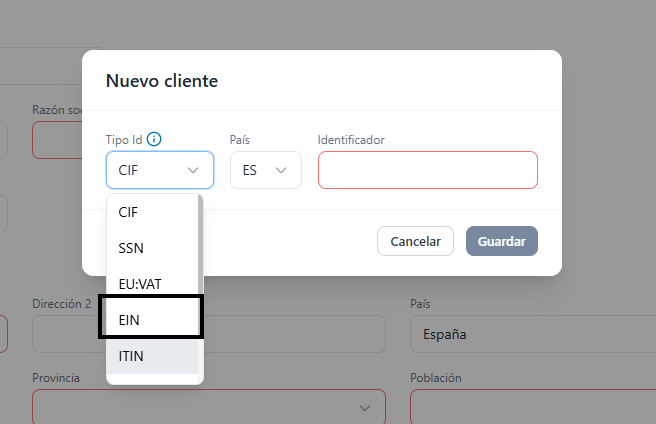
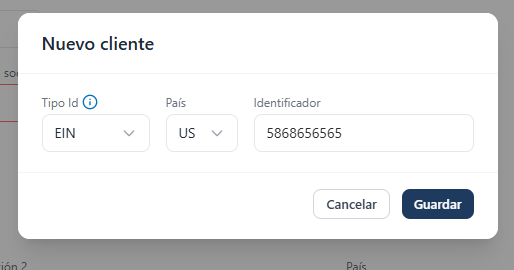
Click «Nuevo cliente» and change «Tipo Id» and «País»
Before entering the identifier. For example, «EIN» and «US» for a United States tax ID.
- 2
Click «Guardar» and fill in the form
As in the other cases: name, address, province or state, town, postcode, contact and bank account. In «Población» (Town) you can type the name even if the list does not suggest it.

- 3
Click «Guardar»
The customer appears in the list.

You can also watch it on video: Creating a new customer in Central eFactura.