
Updated on November 20, 2026
Viewing, editing and collecting an issued invoice and managing its payment items
How to view an invoice in read-only mode, edit it, mark it as paid or pending, and view, cancel, delete or download its payment items.
View an invoice in read-only mode
- 1
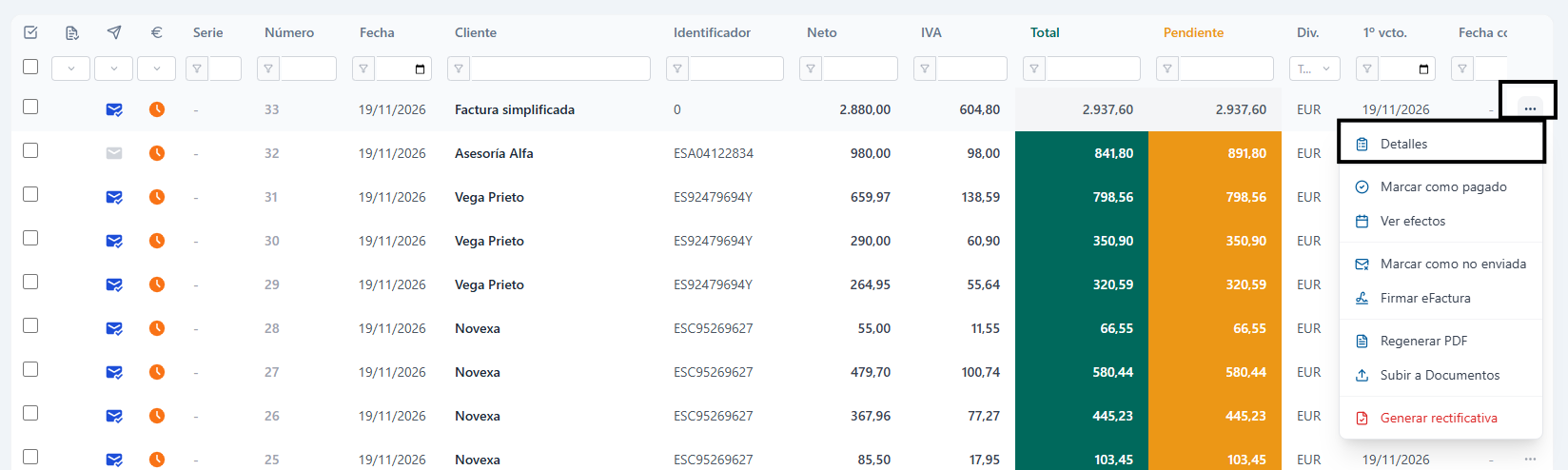
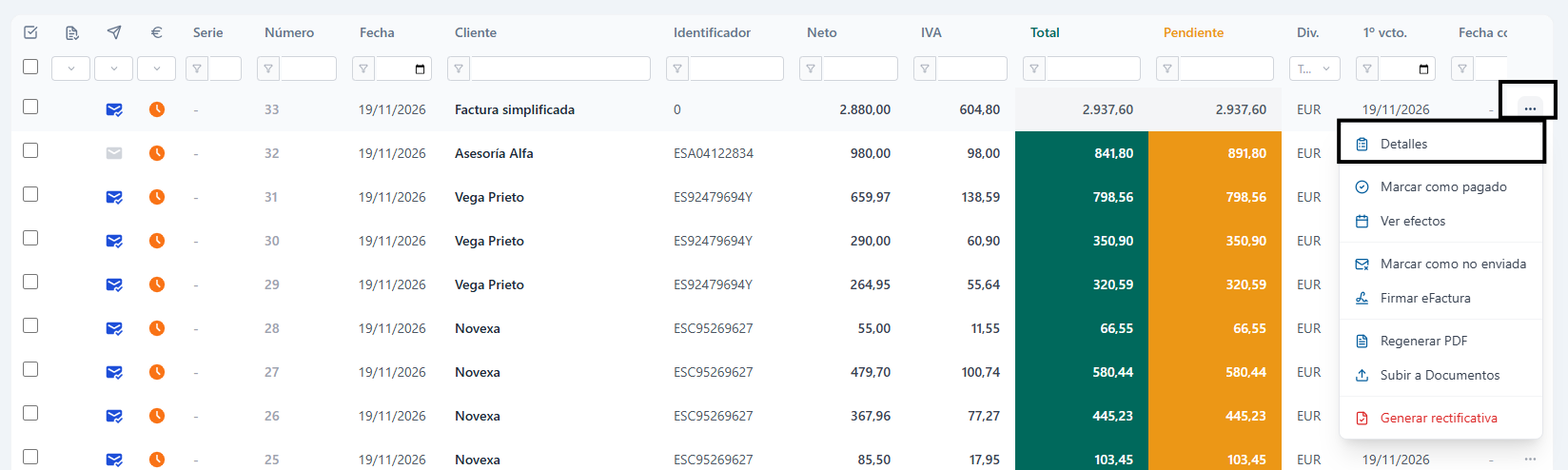
Open the invoice menu and choose «Detalles»
In the «Facturas emitidas» (Issued invoices) list, click the three dots on its row and choose «Detalles» (Details). The invoice record opens in read-only mode: no data can be changed.
- 2
Check the summary at the top
It shows the customer, the date, the currency and the payment method, and the amounts: tax base, taxes, total and amount pending collection.
- 3
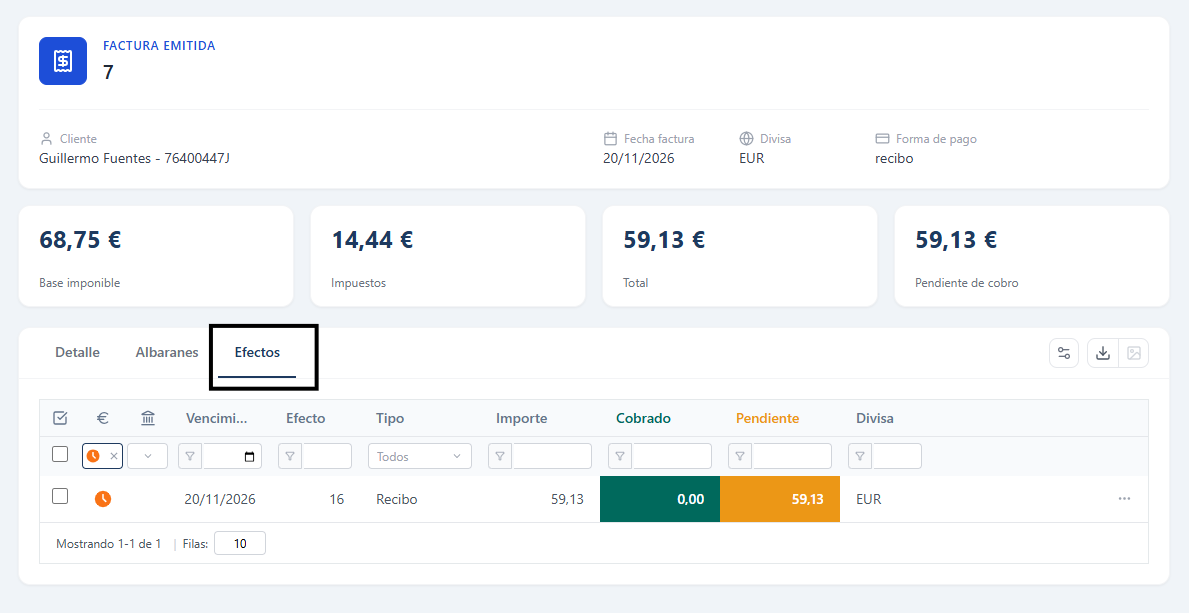
Click the «Efectos» tab
The invoice's payment items («Efectos») are listed; their amounts add up to the invoice total.
- 4
Click «Volver»
You go back («Volver», Back) to the «Facturas emitidas» list.
Edit an invoice
- 1
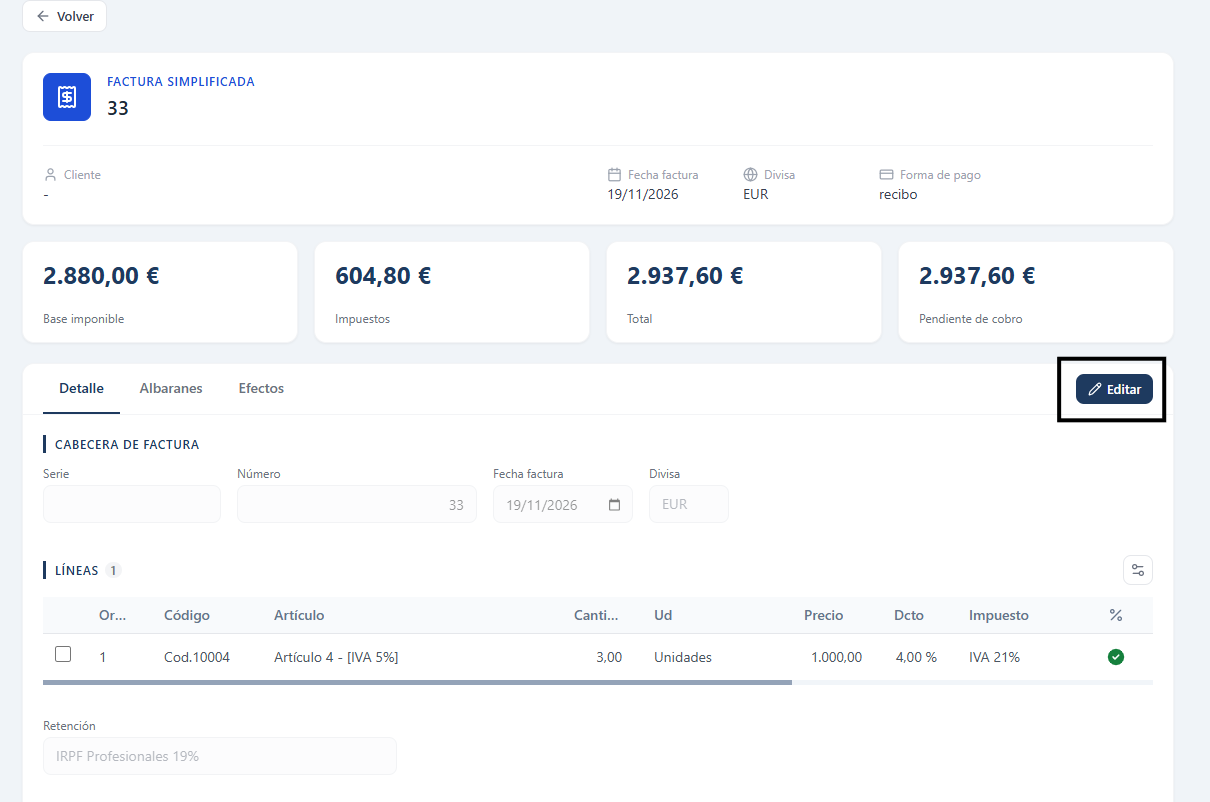
Open «Detalles» and click «Editar»
The record opens in edit mode («Editar», Edit).
- 2
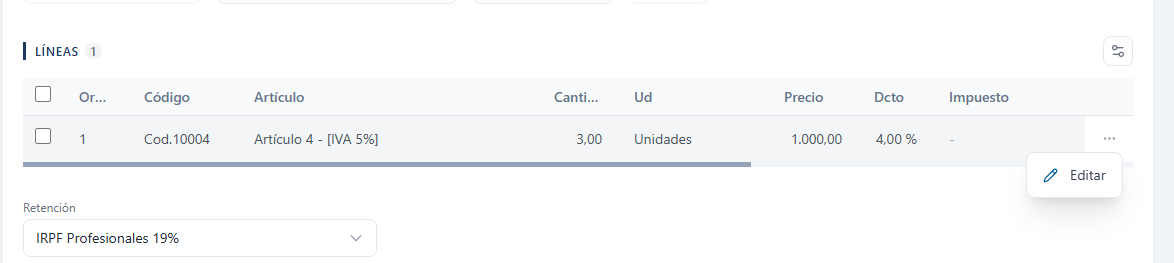
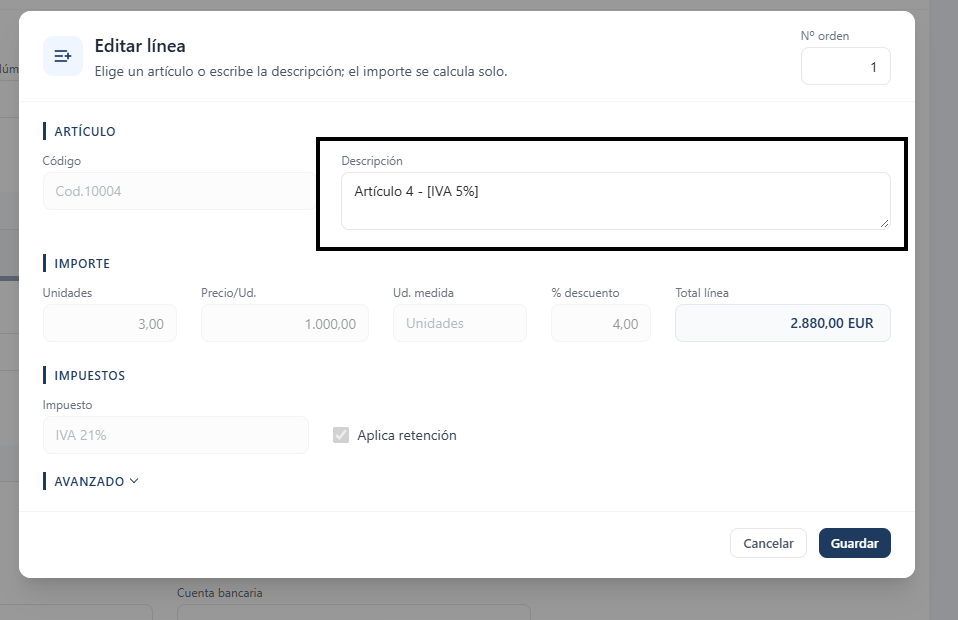
To change a line, open its menu and choose «Editar»
In the «Líneas» (Lines) table. The «Editar línea» (Edit line) window opens: change what you need (for example, the description) and click «Guardar» (Save).
- 3
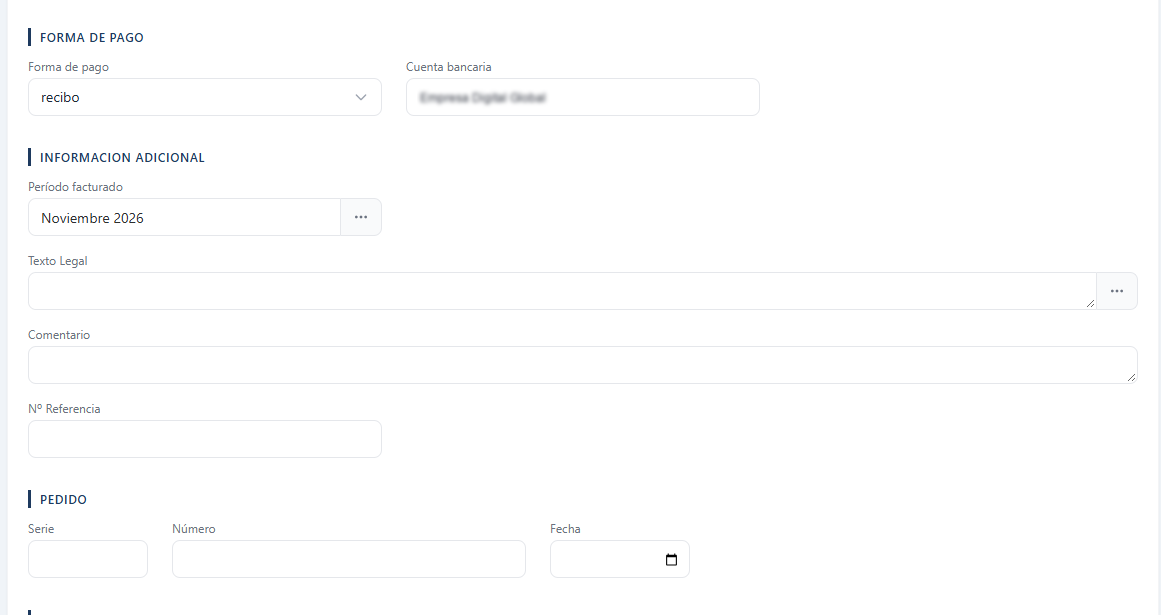
Change the payment method or other data
In «Forma de pago» (Payment method) and, below, in «Información adicional» (Additional information: invoiced period, legal text, comment and reference number) and «Pedido» (Order).
- 4
Click «Guardar»
The record goes back to read-only mode. Click «Volver» (Back) to go to the list.
Mark an invoice as paid
- 1
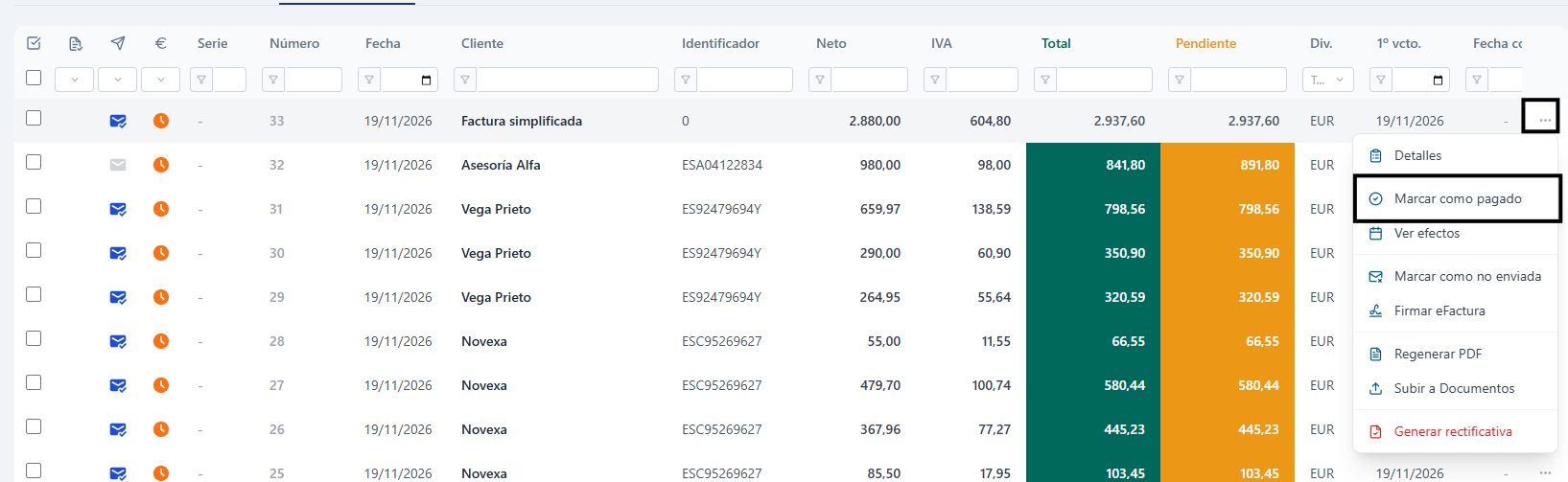
Open the invoice menu and choose «Marcar como pagado»
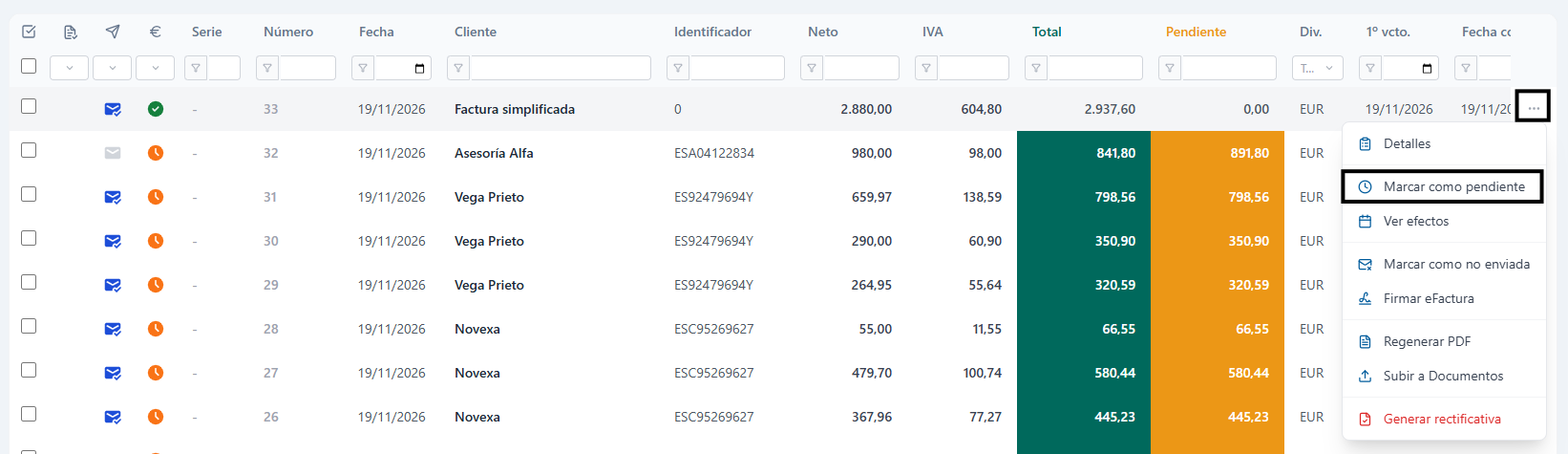
If the invoice is already paid, the menu offers «Marcar como pendiente» (Mark as pending) instead of «Marcar como pagado» (Mark as paid).
- 2
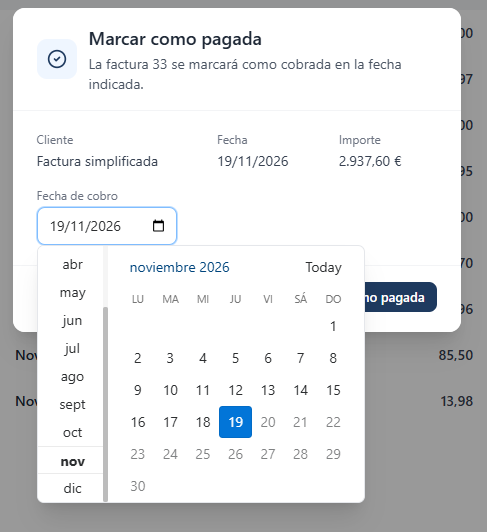
Check the «Fecha de cobro»
In the «Marcar como pagada» window, with the invoice's customer, date and amount. The collection date («Fecha de cobro») is today's date; you can change it.
- 3
Click «Marcar como pagada»
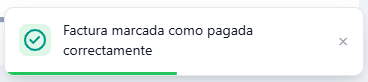
The message «Factura marcada como pagada correctamente» (Invoice marked as paid) appears. In the invoice's «Estado pago» (Payment status, €) column, the icon turns green: «Pagado» (Paid).

Mark an invoice as pending again
- 1
Open the menu of a paid invoice and choose «Marcar como pendiente»
The «Efectos de la factura» (Invoice payment items) window opens, with its payment items. From there you modify them as explained below, in «Cancel a payment item».
View the payment items (collections) of an invoice
- 1
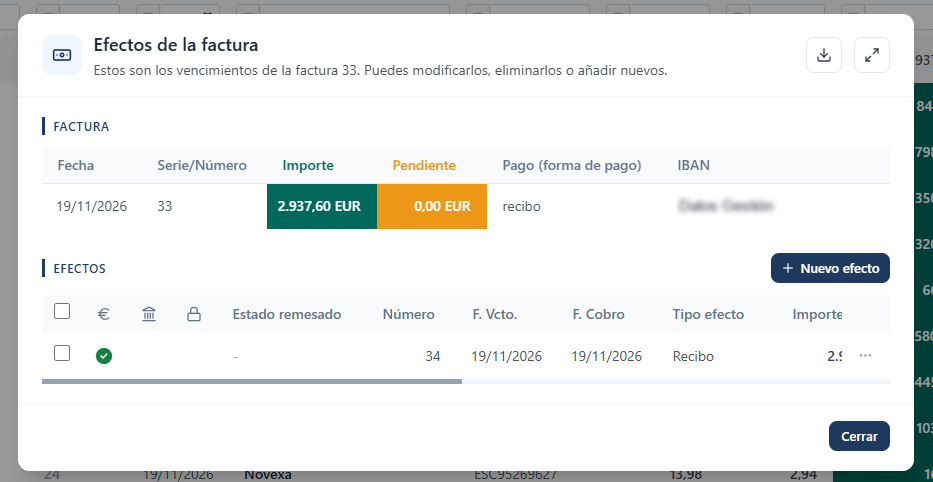
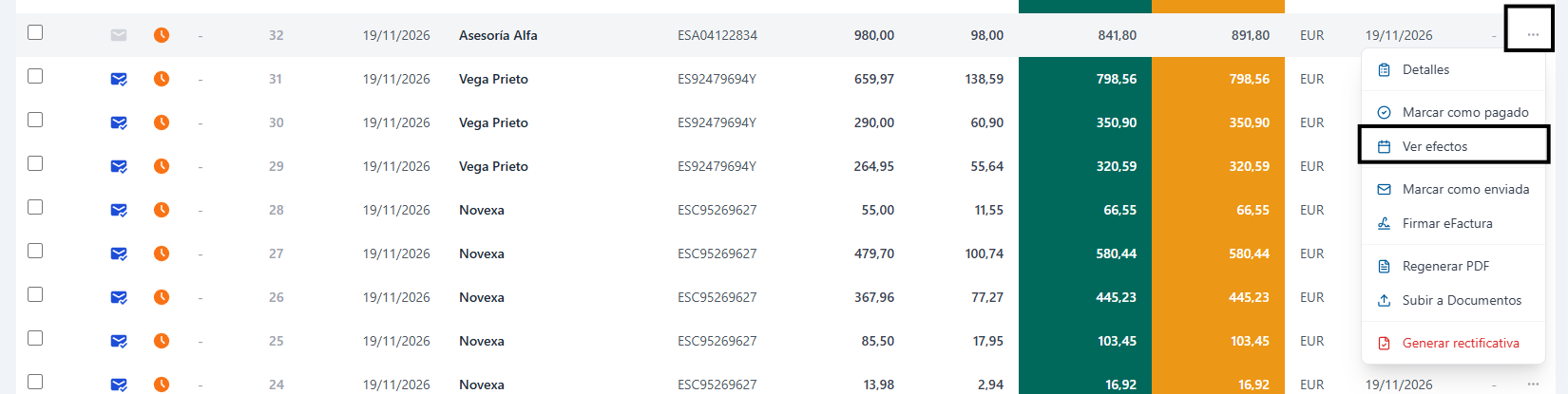
Open the invoice menu and choose «Ver efectos»
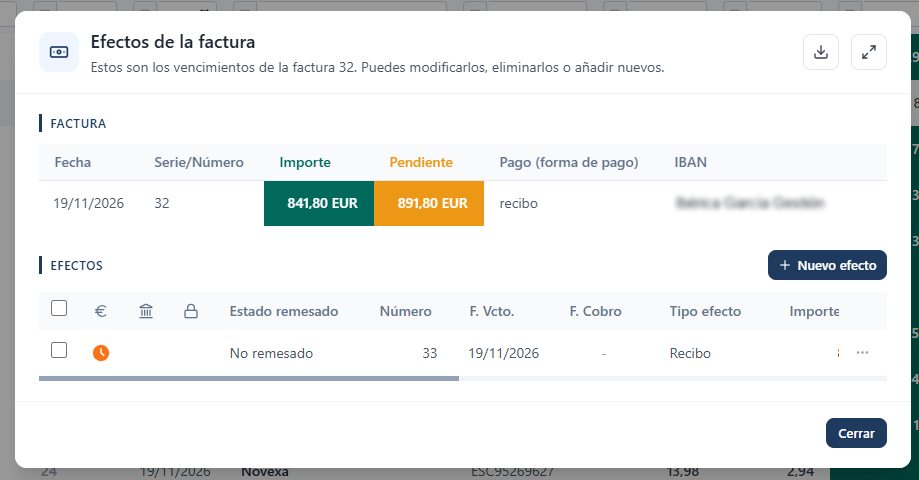
«Efectos de la factura» opens («Ver efectos», View payment items): at the top, the invoice data (date, series and number, amount, pending amount, payment method and IBAN); below, its payment items, with the payment status, number, due date, collection date, payment item type and amount.
Cancel a payment item
- 1
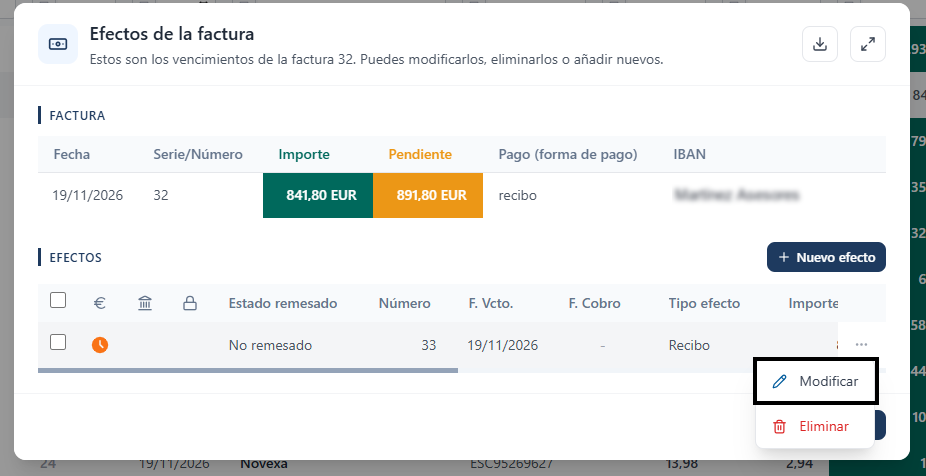
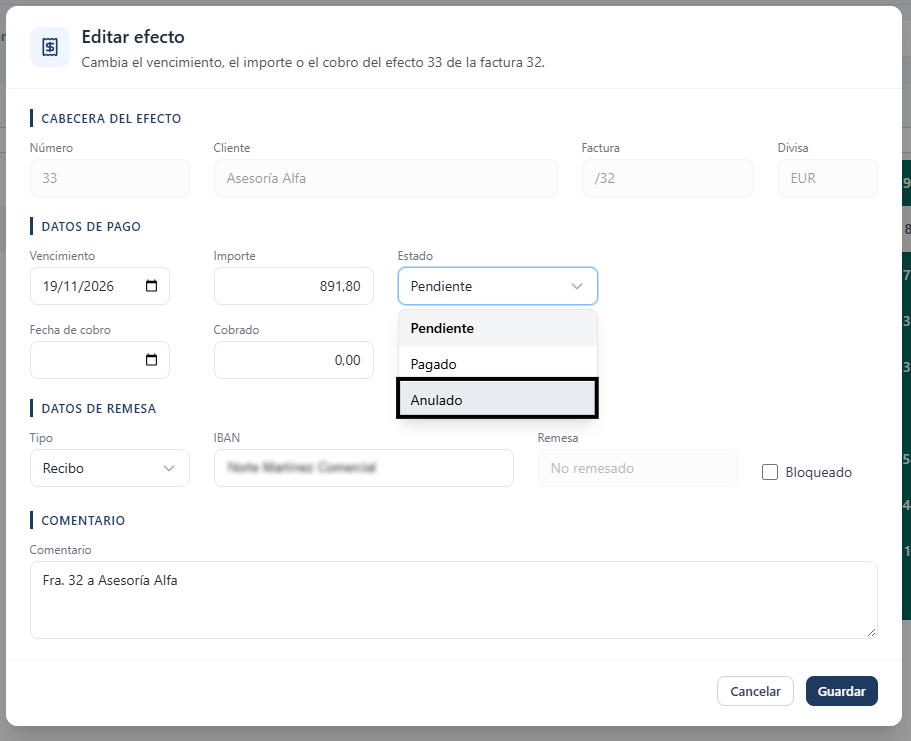
In «Efectos de la factura», open the payment item menu and choose «Modificar»
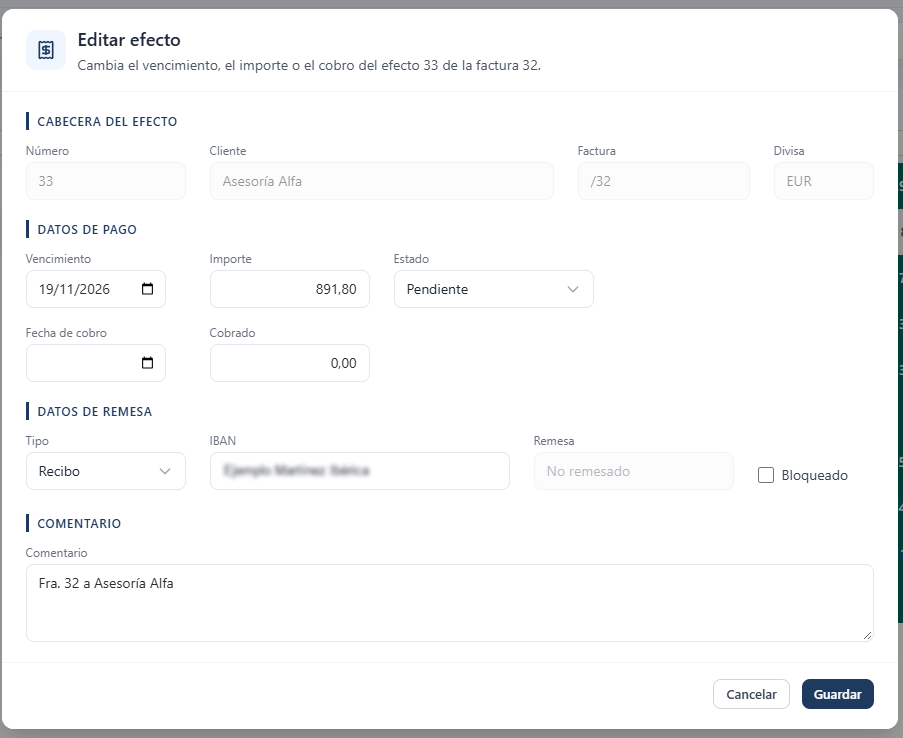
«Editar efecto» (Edit payment item) opens («Modificar», Modify).
- 2
Change «Estado» to «Anulado»
Set the status («Estado») to «Anulado» (Cancelled). If «Tipo» (Type) is set to «No definido» (Not defined), choose a type: otherwise «Guardar» (Save) is not enabled.
- 3
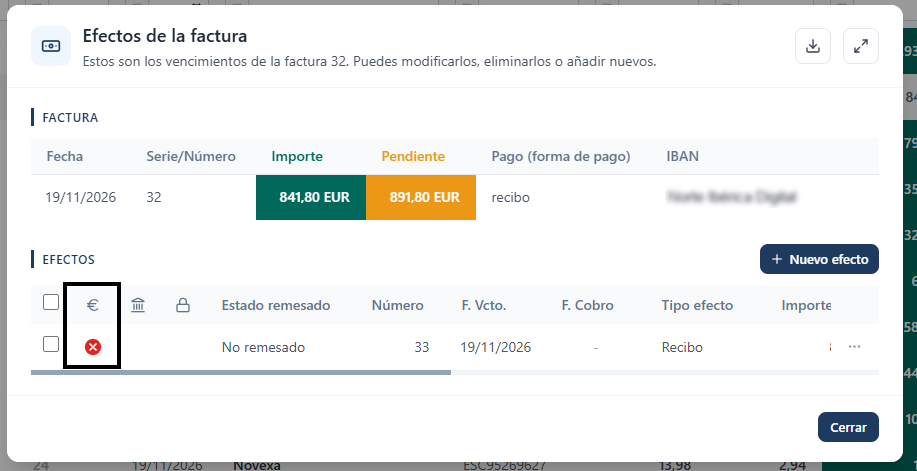
Click «Guardar»
If «Descuadre en factura» (Invoice imbalance) appears, click «Continuar» (Continue). The payment item's «Estado pago» (€) column shows «Anulado» (red icon).
- 4
Click «Cerrar»
You go back («Cerrar», Close) to the invoice list.
Delete a payment item
- 1
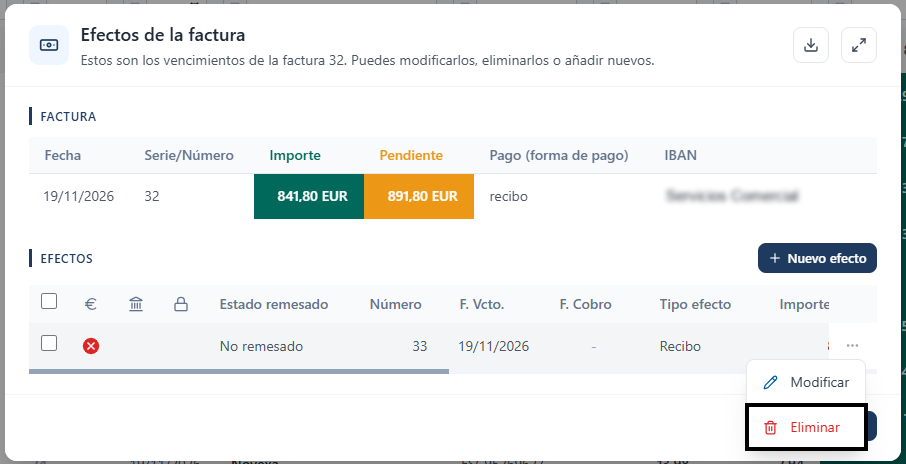
In «Efectos de la factura», open the payment item menu and choose «Eliminar»
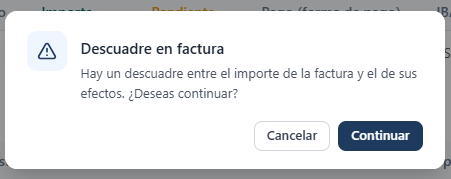
If the invoice amount and its payment items' amounts do not match, «Descuadre en factura» (Invoice imbalance) appears: click «Continuar» (Continue).
- 2
Read the message
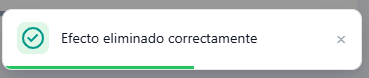
The message «Efecto eliminado correctamente» (Payment item deleted) appears and the payment item disappears from the list.
Download the payment items in Excel
- 1
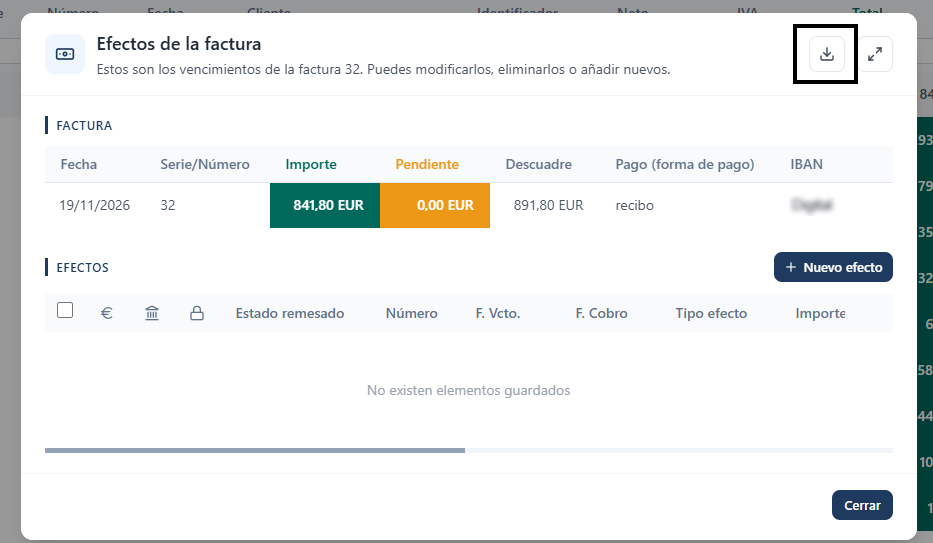
In «Efectos de la factura», click the download button
«Descargar listado Excel» (Download Excel list), at the top right. An .xlsx file with the payment items is downloaded.
- 2
Click «Cerrar»
You go back («Cerrar», Close) to the invoice list.
The payment items of all your invoices, and their remittances, are in «Gestión de cobros» (Collections management): Payment items.