
Updated on November 20, 2026
Adding delivery notes from the Excel template
How to download the Excel template, fill it in with your delivery notes and import it into the Invoicing tool, and what to do if some data is not valid.
Download the template
- 1
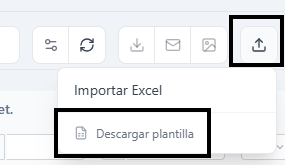
Click «Importar» and choose «Descargar plantilla»
In the toolbar of the «Albaranes» (Delivery notes) tab («Importar», Import; «Descargar plantilla», Download template). An Excel template (.xlsx) is downloaded.
Fill in the template
- 1
Fill in the delivery notes on the «Facturas» sheet
In the «TipoDocumento» (Document type) column, type «Albaran».
- 2
Enter the dates as text
«Fecha» (Date) and «FechaOperacion» (Transaction date), in year-month-day format; for example, 2024-12-20.
- 3
Always fill in your company's details
In «EmisorCIF» (Issuer tax ID) and «EmisorCodigoPais» (Issuer country code).
- 4
Save the file
In .xlsx format.
Import the file
- 1
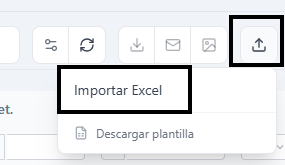
Click «Importar» and choose «Importar Excel»
Then choose the .xlsx file you filled in («Importar Excel», Import Excel).
- 2
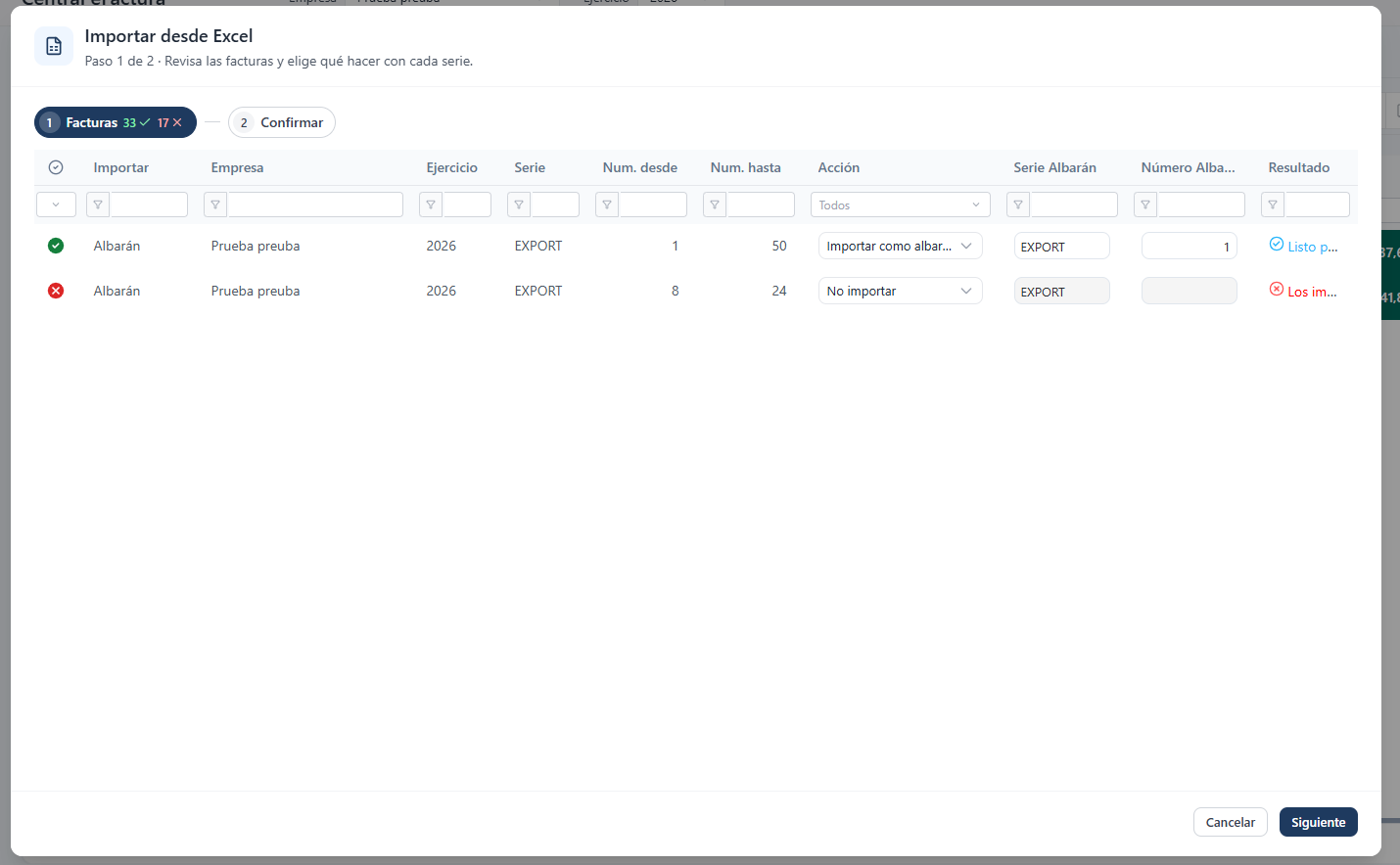
Check each step and click «Siguiente»
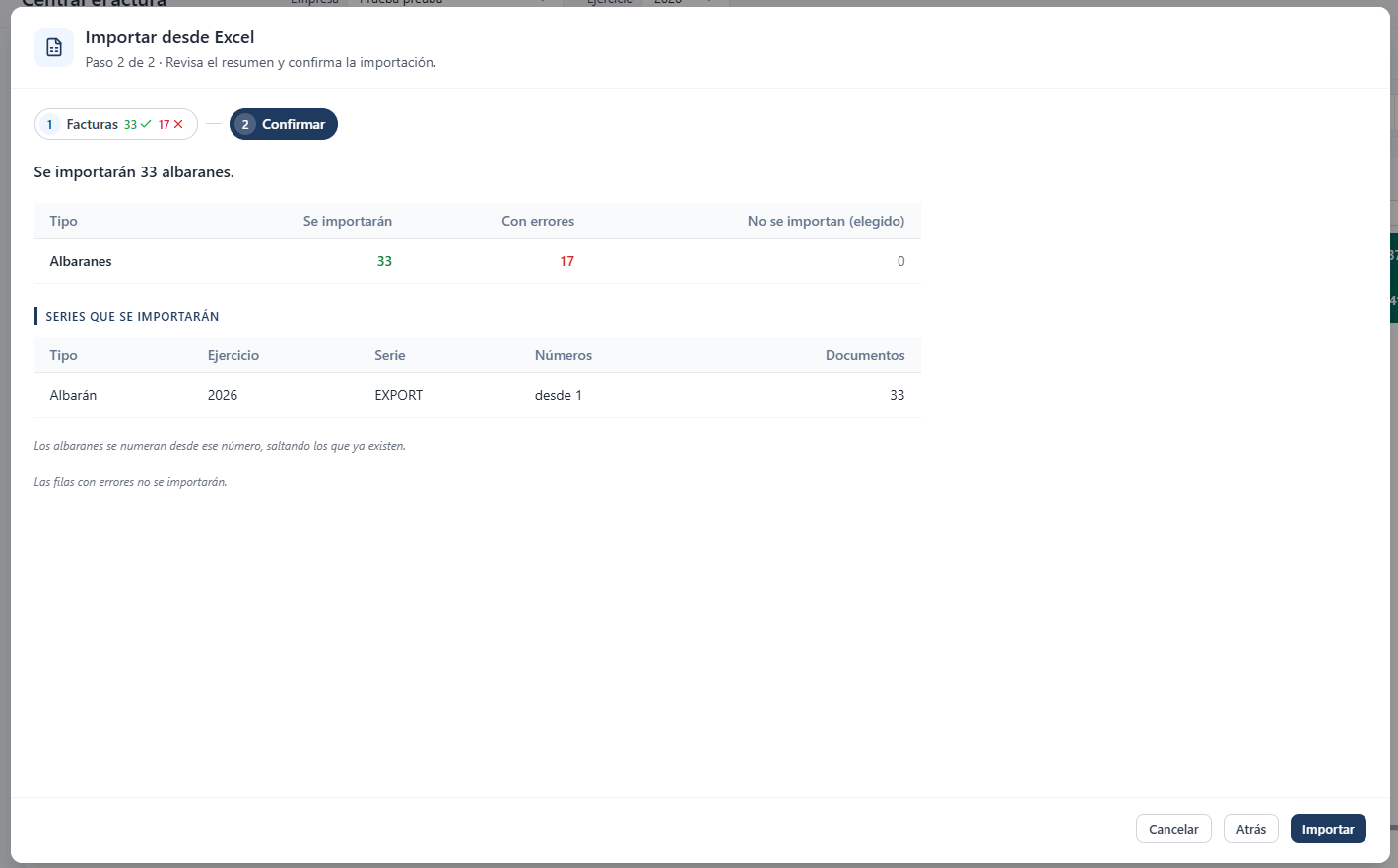
The «Importar desde Excel» (Import from Excel) window opens, a step-by-step wizard («Siguiente», Next). The last step, «Confirmar» (Confirm), has the import summary.
- 3
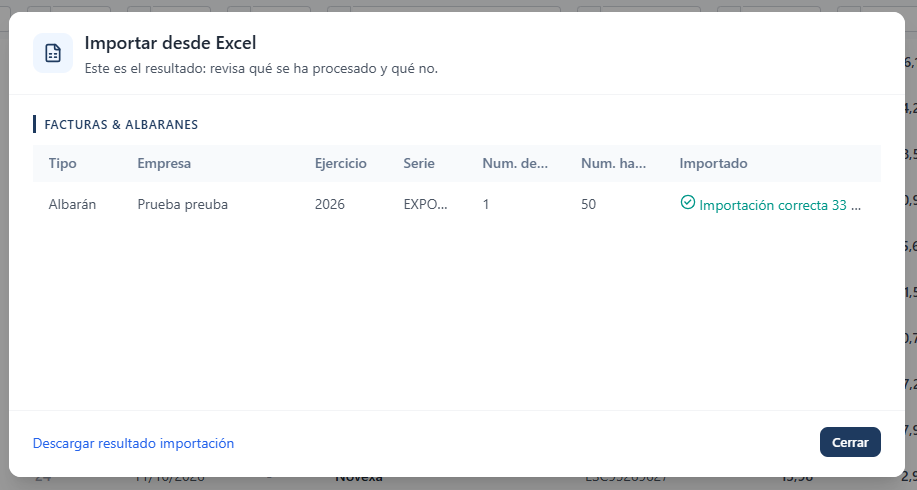
Click «Importar»
The window shows the import result.
- 4
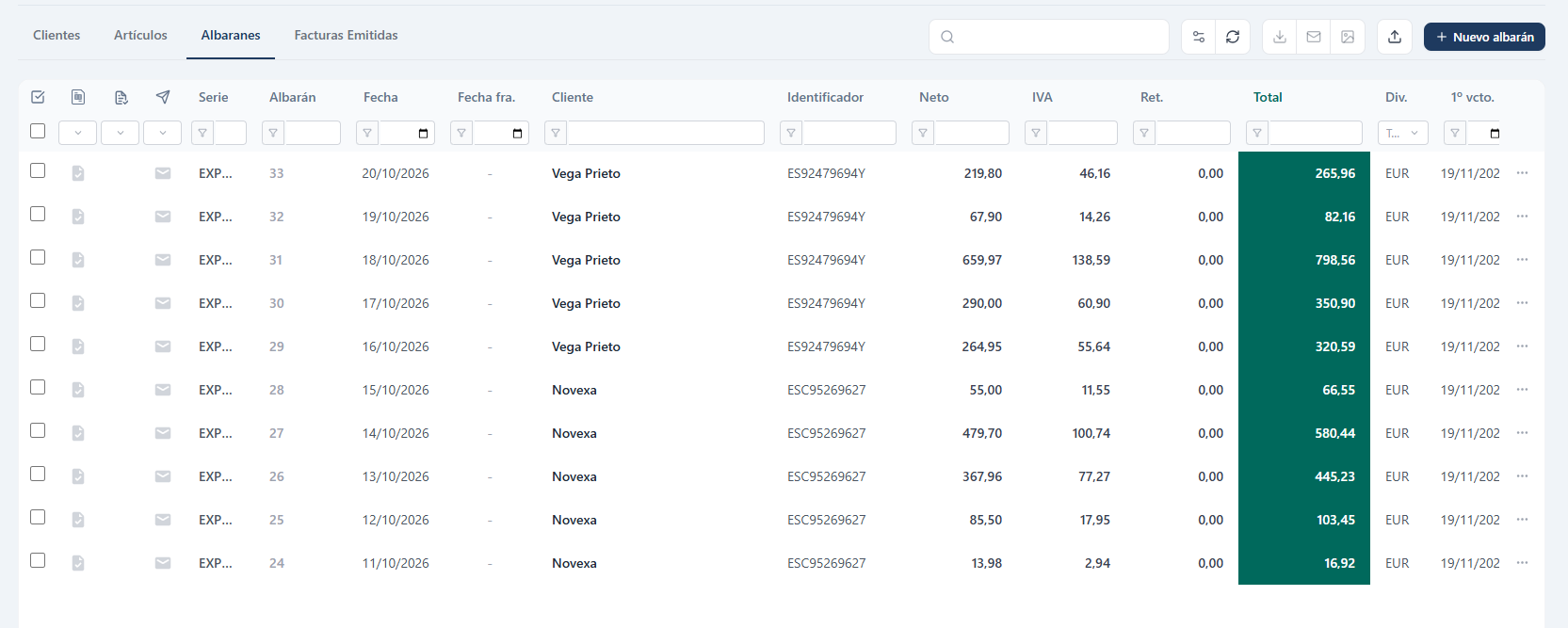
Close the window and click «Refrescar»
The imported delivery notes appear in the list («Refrescar», Refresh).
If some data is not valid
- 1
Check the reason
The wizard marks each row with errors and its reason (for example, «CIF emisor o cliente inválido», Invalid issuer or customer tax ID). Rows with errors are not imported; if none is correct, you cannot get to «Importar».
- 2
Correct the file and import it again
Click «Cancelar» (Cancel), correct the data in the Excel file and import it again.