Updated on 28 September 2026
Block and unblock Sage payments with Workflows
Prevent invoices from being paid in Sage until they are authorized in the signing process.
How to block payments in Workflows (Sage)
Ubyquo lets you block invoice payments through workflows, so that the due items cannot be paid until they are authorized in the signing process.
To use this feature, you need to configure the workflow stage correctly and send the invoice before posting it.
Enable payment blocking in the stage
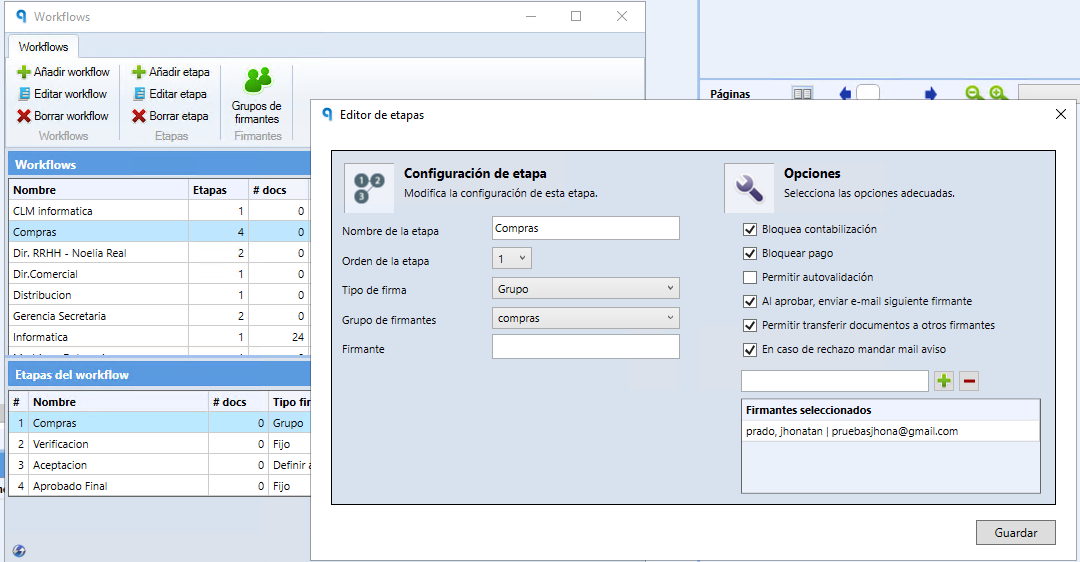
When creating or configuring the workflow stage, enable the Bloquear Pago (Block Payment) option.
Send the invoice to the workflow before posting it
For the payment to be blocked correctly, the user must send the invoice to the workflow before posting it.
The invoice must be in one of the following states:
- In the Documentos (Documents) tab, as an unposted document.
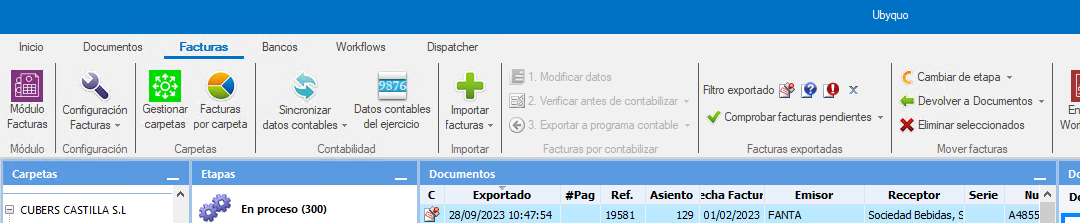
- In the Facturas (Invoices) tab.

Post the invoice and check the block
Once the invoice has been sent to the workflow with payment blocking enabled, post it as usual.
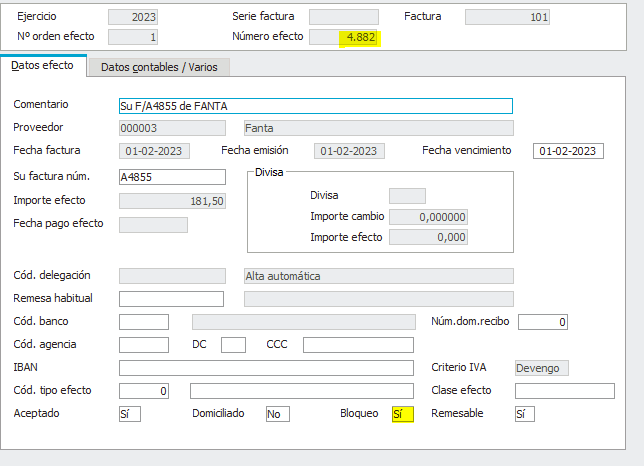
After posting:
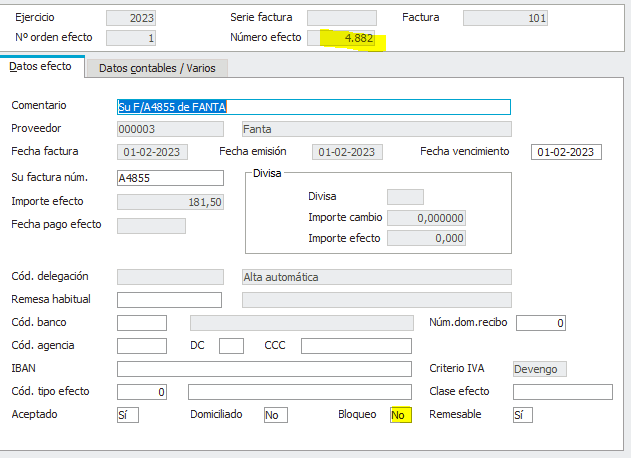
- In Sage: the due item will appear as blocked.
- In Ubyquo: the B column will show a padlock indicating that the due item is blocked.

Unblock the due items to make the payment
When the accountant needs to pay the remittances, they must unblock the corresponding due items.
Steps to unblock payments
- Filter the documents to show only the blocked ones.
- Select all the documents you want to unblock.
- Run the unblock action.
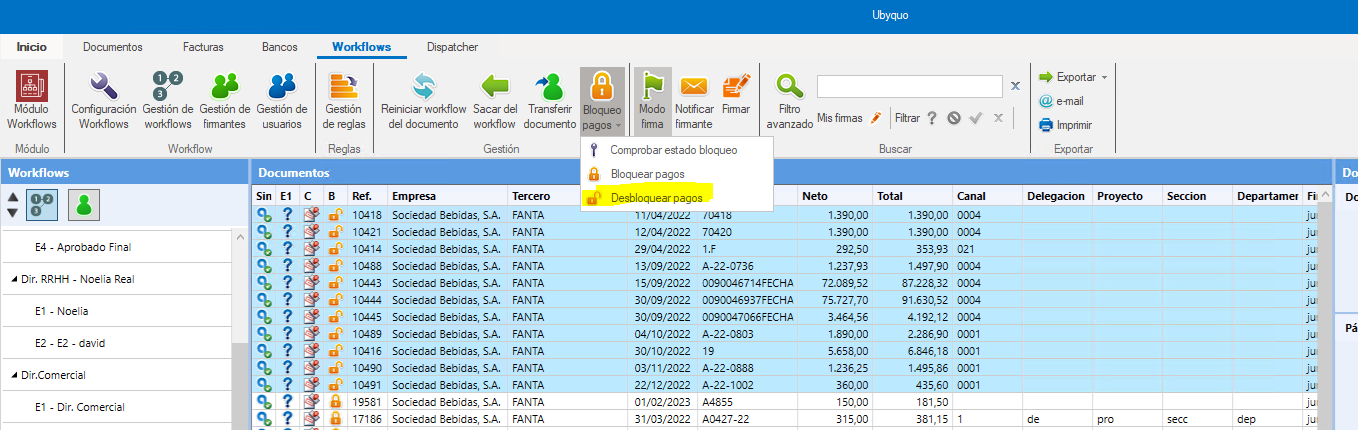
Once unblocked:
- The workflow padlock will appear open.
- The due item will be unblocked in Sage.

Make the payment and check the result
Once the due item is unblocked, make the corresponding payment.
Check that Ubyquo shows the euro symbol (€), which indicates that the due item has been paid.
Configuration recommendations
To get the most out of payment blocking through workflows, we recommend:
- Having direct export enabled.
- Having correctly defined workflow rules.
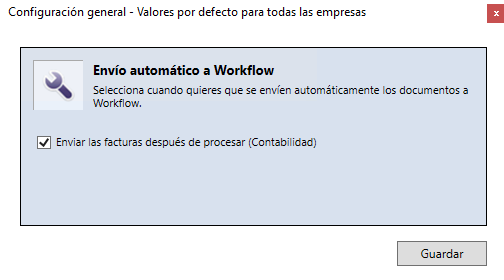
- Enabling the Enviar las facturas después de procesar (Contabilidad) (Send invoices after processing (Accounting)) option in the Workflows configuration.