
Updated on 25 September 2026
How do I create a new workflow? Users, groups and signers
Register your users, organize them into signer groups and set up your first workflow.
Before you start creating workflows, you must register the users who will be part of the groups and workflows.
1
Create the users (required)
Before configuring groups and workflows, make sure all users are registered in Ubyquo.
See the following article to learn how:
2
Create user groups for workflows
Steps to create a group
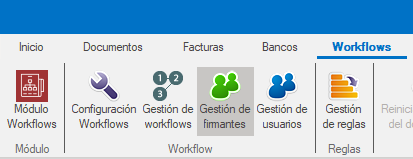
- Go to the Workflows tab and find the Gestión de firmantes (Signer management) option at the top.
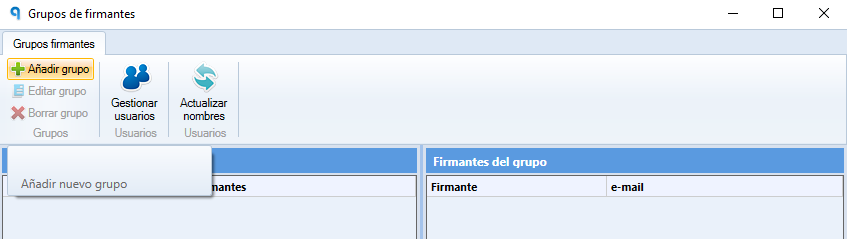
- Click Añadir grupo (Add group).
- Enter the group name.
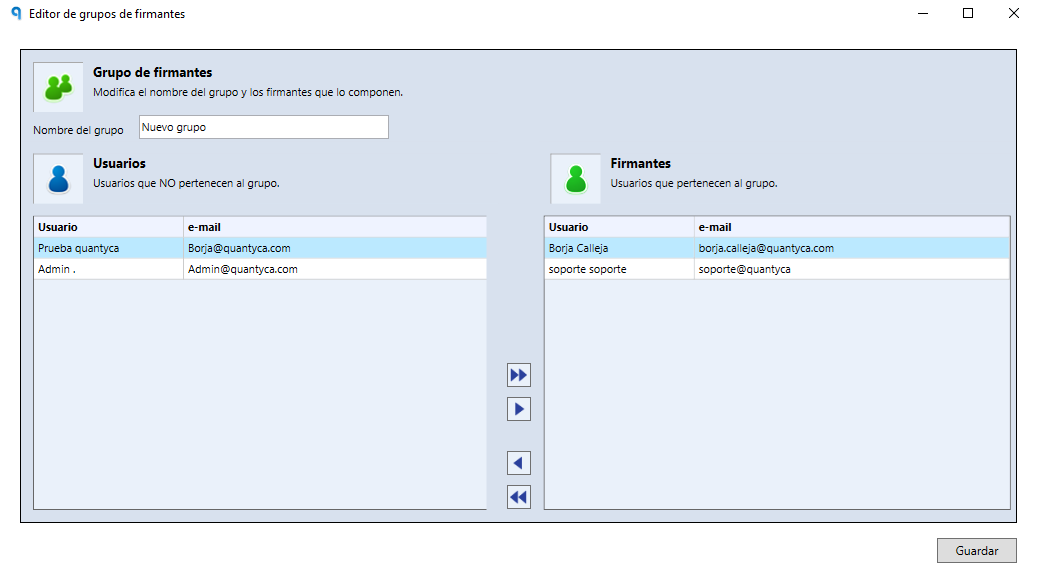
- Add the users with the arrows. The selected users will appear in the window on the right.
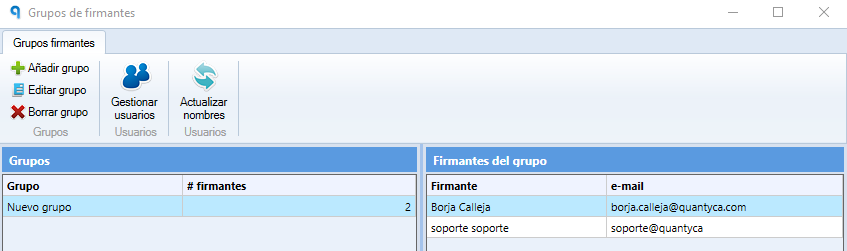
- When you finish, the group will appear in a new window.
Edit or delete a group
- Edit: from the group window, you can add or remove signers.
- Delete: before deleting a group, make sure it is not assigned to any workflow.
3
Create a workflow
Steps to create a workflow
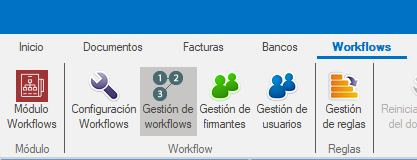
- Go to the Workflows tab and open Gestión de workflows (Workflow management).
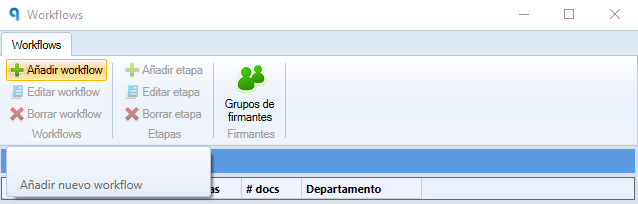
- Select the Añadir workflow (Add workflow) option.
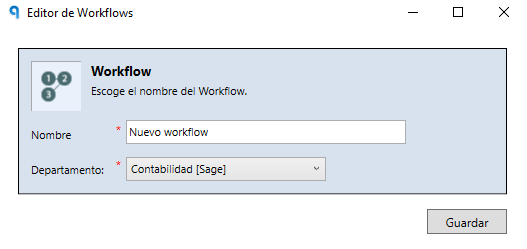
- Enter a name for the workflow and select the corresponding department (ERP/Programa contable (ERP/Accounting software)).
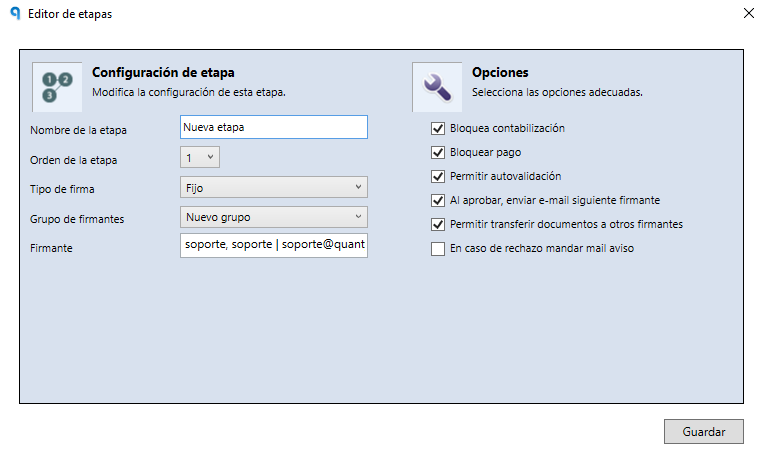
- Create at least one stage with the Añadir etapa (Add stage) option.
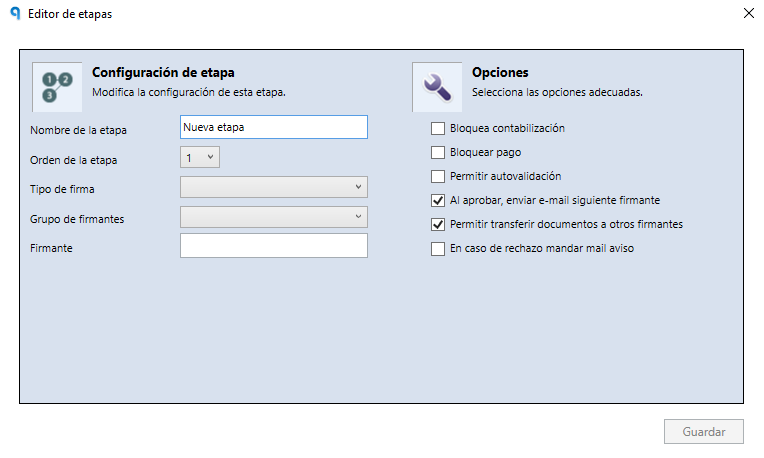
- Enter the name of the stage and select the signature type you need.
Available signature types
- Grupo (Group): any user in the group can sign.
- Definir al enviar (Define when sending): the signer is selected manually or automatically through rules. (Recommended)
- Fijo (Fixed): a fixed user is set as the signer. (Recommended)
- Por datos del documento (By document data): option available only for customizations.
4
Limits and considerations
- Stages per workflow: you can create up to 10 stages per workflow.
- Number of workflows: there is no limit on the number of workflows you can create.
All changes made to the workflow configuration will only affect invoices that are sent for signature after the changes are applied.