
Updated on 24 September 2026
Direct invoice export to Glasof
Move your invoices to Glasof with their journal entries and accounts, and view the documents from there.
The direct export from Ubyquo to Glasof lets you transfer invoices and generate the corresponding journal entries and accounts. Once the export is done, you can look up the invoices in Ubyquo and view the linked documents directly from Glasof.
Export the invoices from Ubyquo
In Ubyquo, export the invoices you want to move to Glasof.
Once the export has finished, the invoices will automatically move from the Por contabilizar (To be posted) folder to Exportados (Exported).
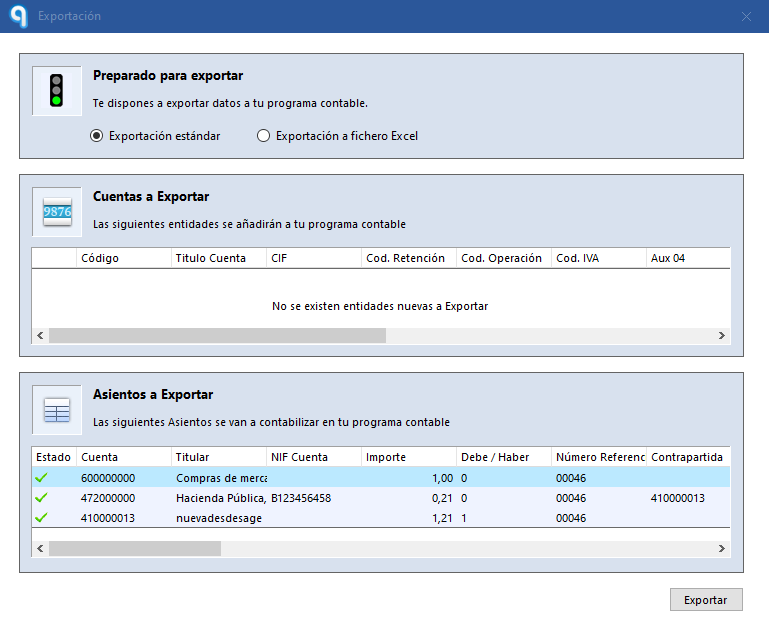
Question mark icon
In the Exportados folder, a question mark (?) icon will appear next to the invoices.
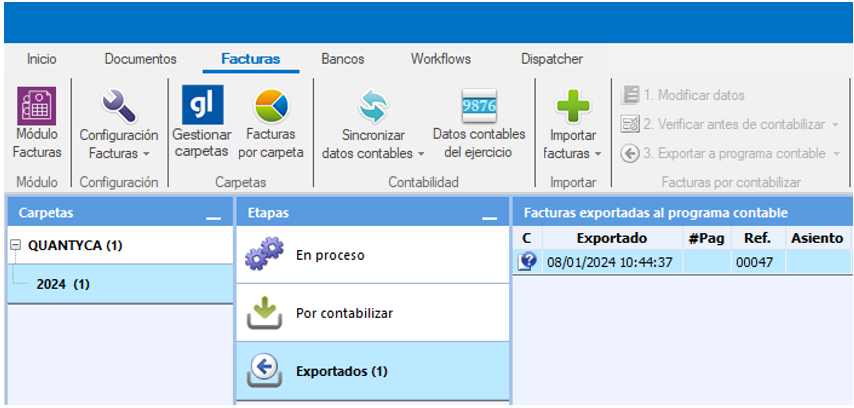
This icon means the invoices have been exported and are waiting for confirmation that they have been posted in Glasof.
Automatic import into Glasof
You do not need to do anything manually to import the data.
The journal entries and accounts generated from Ubyquo are added to Glasof automatically.
Once posted, the invoices will be available in the following sections:
- Exportados: the invoices will appear with the Contabilizado (Posted) icon and the corresponding journal entry number.
- Documentos (Documents): you will be able to search for invoices, apply filters and manage them as documents from Ubyquo's document manager.
View the linked document from Glasof
To look up an invoice image from Glasof, follow these steps:
- Open Glasof and go to the Diario (Journal).
- Find the invoice you want to look up.
- Click the Q icon in the V column.
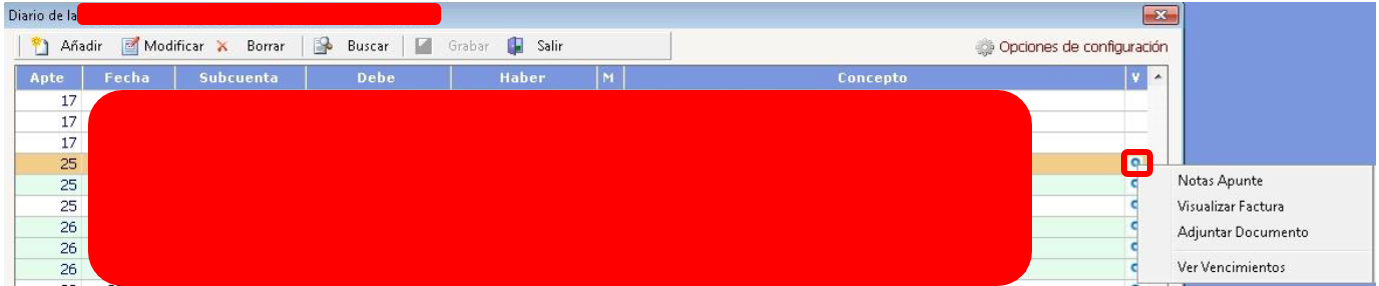
- In the window that appears, select Visualizar factura (View invoice).
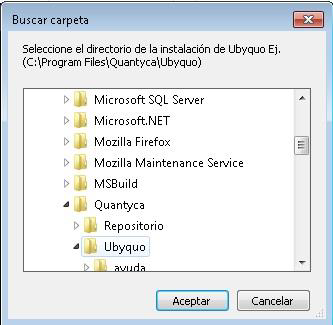
- Browse to the Ubyquo installation path and select the Ubyquo folder.
- The Ubyquo document viewer will open. Enter your credentials:
- — Ubyquo Facturas Usuario (User).
- — Ubyquo Facturas Contraseña (Password).
- Once you are authenticated, the image of the document linked to the invoice will be shown.
Remember your credentials
If you want to avoid entering your credentials in future lookups, you can tick the following options:
- Recordar usuario (Remember user)
- Recordar contraseña (Remember password)