Updated on 24 September 2026
Altai: open Superwin.ini and repair the database
Locate the Altai database when the Microsoft Jet engine error appears and try to repair it.
If the error “El motor de la base de datos Microsoft Jet detuvo el proceso” (The Microsoft Jet database engine stopped the process) appears when working with Altai, follow this procedure to locate the company's database and try to repair it using Microsoft Access.
1
Open the Superwin.ini file
- Go to the following path:
C:\Windows\Superwin.ini - Open the Superwin.ini file with a text editor, such as Notepad (Bloc de notas).
- Check that the file contains a configuration similar to the following:
[Superwin] Usuario=0 BaseConf=C:\Altai\BaseConf.mdb Conexion= Programa=C:\PROGRA\~2\PROA\Superwin\superwin.EXE FACTURA25=1 TipoVersion=COMASA FechaPorDefecto=1 TRASPASOS_EXTERNOS=1 IMPRESO_2019=C:\Altai\refbd2019.mdbUse this information as a reference to locate the Altai installation folder.
2
Go to the Altai folder
- Identify the Altai installation path. For example:
C:\Altai - Copy the folder path.
- Open any Windows folder and paste the path into the address bar.
- Press Intro (Enter) to go to the folder.
3
Locate the company's DAT_ file
Inside the Altai folder, look for the file whose name starts with DAT_, followed by the code of the affected company.
Identify the file for the company where the error occurred.
4
Open the database with Microsoft Access
- Right-click the DAT_ file for the company.
- Select Abrir con > Microsoft Access (Open with > Microsoft Access).
- Wait for the database to open.
5
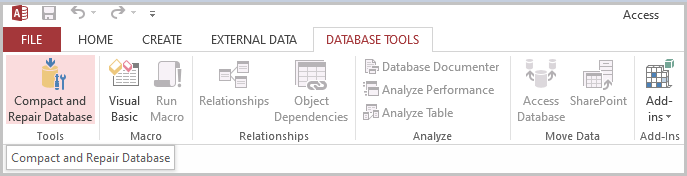
Repair the database
With the database open in Microsoft Access:
- Go to the Herramientas (Tools) menu at the top.
- In the drop-down menu, find the BBDD (Databases) section.
- Select Reparar base de datos (Repair database).