
Updated on September 24, 2026
How to set up automatic sending of invoice batches
Set up the fiscal years from which Ubyquo will send invoice batches automatically every 30 minutes.
Ubyquo lets you automate the sending of invoice batches for processing from the selected fiscal years.
The system sends them automatically every 30 minutes, with no need to do it manually.
Go to the automatic sending settings
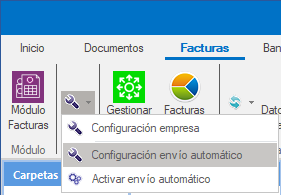
Go to:
Facturas > Configuración Facturas > Configuración envío automático (Invoices > Invoice settings > Automatic sending settings)
Select the fiscal years
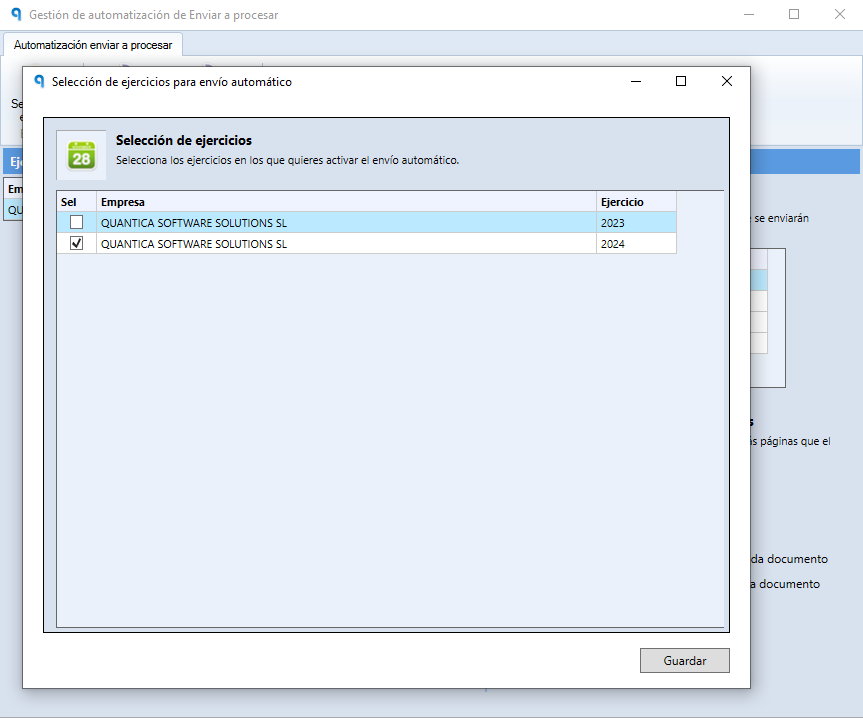
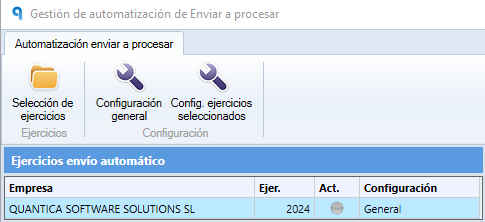
- Click Selección de Ejercicios (Fiscal year selection).
- Check the fiscal years from which you want to send batches automatically.
- Click Guardar (Save).
Check the configured fiscal years
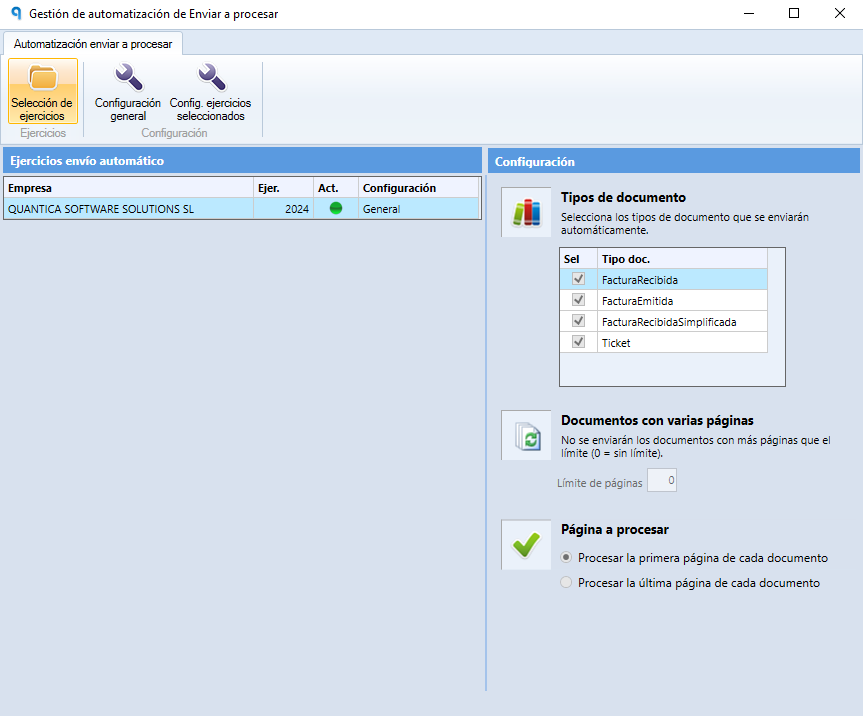
Once the settings are saved, a list of the selected fiscal years will appear.
Each fiscal year will show a status indicator:
- Green light: active fiscal year, enabled for automatic sending.
- Gray light: paused fiscal year.
Temporarily pause the sending for a fiscal year
If you need to temporarily stop automatic sending for a fiscal year:
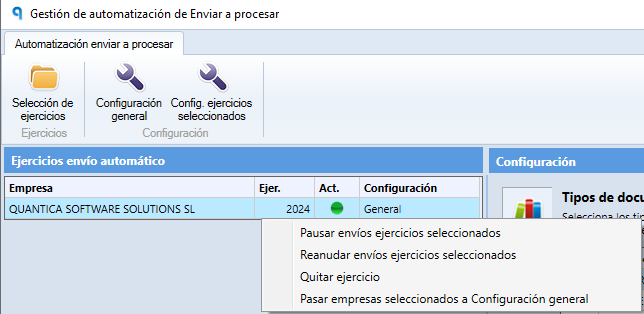
- Right-click the fiscal year.
- Select Pausar envíos ejercicios seleccionados (Pause sending for selected fiscal years).
- The fiscal year's indicator will turn gray, showing that it is paused.
Turn on automatic sending
Once the fiscal years are configured, go to:
Facturas > Configuración Facturas > Activar envío automático (Invoices > Invoice settings > Turn on automatic sending)
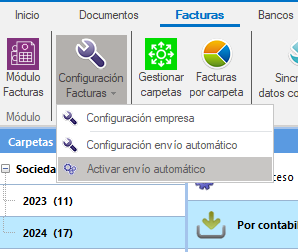
This option starts the system of periodic automatic sending for the configured fiscal years.
Result
Ubyquo will automatically send the invoice batches to be processed every 30 minutes from the fiscal years that are active.
You will not need to send each batch manually.