
Updated on October 9, 2026
Automate repetitive bank transactions with rules
Create rules so that Ubyquo assigns contra accounts only to the transactions that repeat.
Ubyquo rules automate the assignment of contra accounts and the handling of repetitive bank transactions, so you don't have to configure each transaction manually.
Part 1 Create the rule
- 1
Open the transactions editor
In the Banks module, open the Editor de movimientos (Transactions editor).
- 2
Add a rule
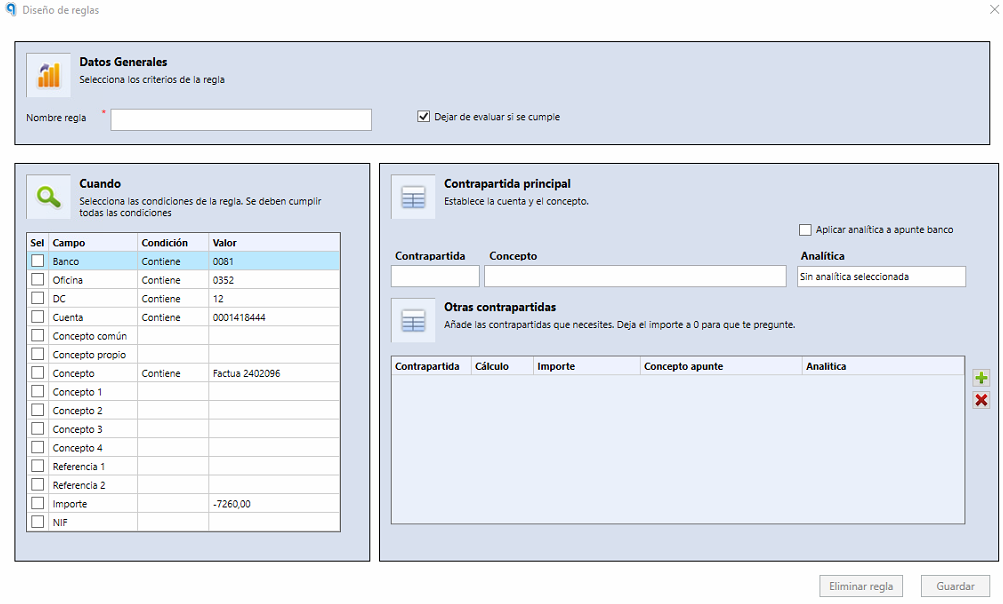
Select the bank transaction you want to automate and click Añadir regla (Add rule), at the top.
- 3
Name it
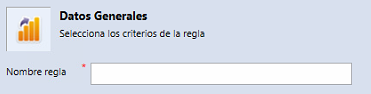
In Nombre regla (Rule name), enter a descriptive name that makes the rule easy to identify.
- 4
Choose the fields that repeat
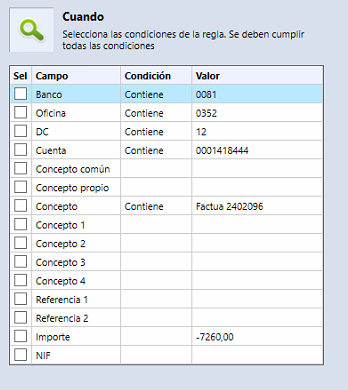
Select the fields that repeat in the transactions, such as amount, date or reference: they are the conditions for applying the rule.
The most common one is Concepto (Description): choose a phrase that always repeats or a keyword present in the description of the bank transaction.
- 5
Choose the contra account and description
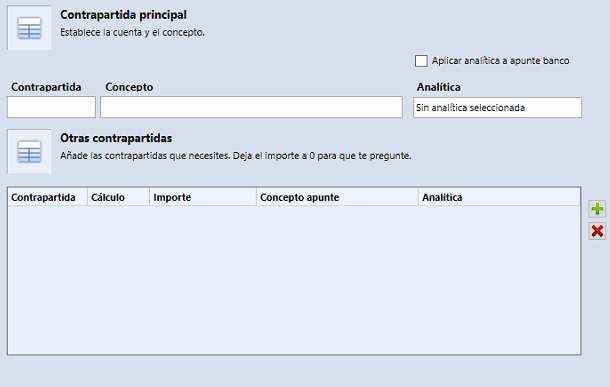
Select the contra account that will be assigned to the transactions that meet the conditions and, if needed, enter a custom description.
The Concepto field is optional: if you leave it empty, the bank description of the transaction is used.
- 6
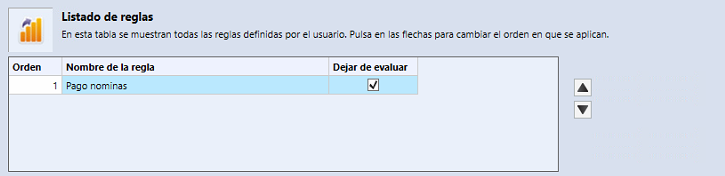
Order the rules
Rules run in order, from the first to the last. If several rules can apply to the same transaction, order them so that the right one runs first.
To prevent more than one rule from being applied to the same transaction, use the Dejar de evaluar (Stop evaluating) option.
Part 2 Exception rule for incorrect NIFs
If Ubyquo detects incorrect NIFs and you don't want them to be used to assign contra accounts:
- 7
Create a rule for invalid NIFs
Create a specific rule to ignore them.
- 8
Leave the contra account empty
Leave the Contrapartida (Contra account) field empty.
- 9
Put it first
Place it in the first position, so that it is evaluated before the others.