
Updated on September 28, 2026
How do I sign pending documents in Ubyquo and on the web?
Approve or reject pending documents from the application or from CI Cloud in your browser.
In Ubyquo, you can sign pending workflow documents in two ways:
- From Ubyquo, directly in the application.
- From CI Cloud, through the web browser.
1
Sign documents from Ubyquo
Steps to sign
- Go to the Workflow tab and select the workflow that contains the pending documents.
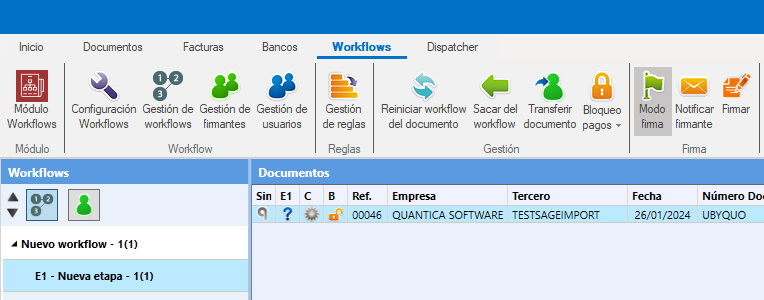
- You can also use the icon that shows all pending documents from all workflows to access Modo firma (Signing mode).
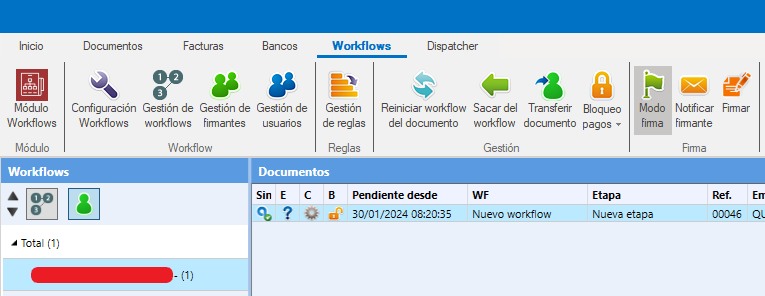
- At the top, click Firmar (Sign) to open the signing window.
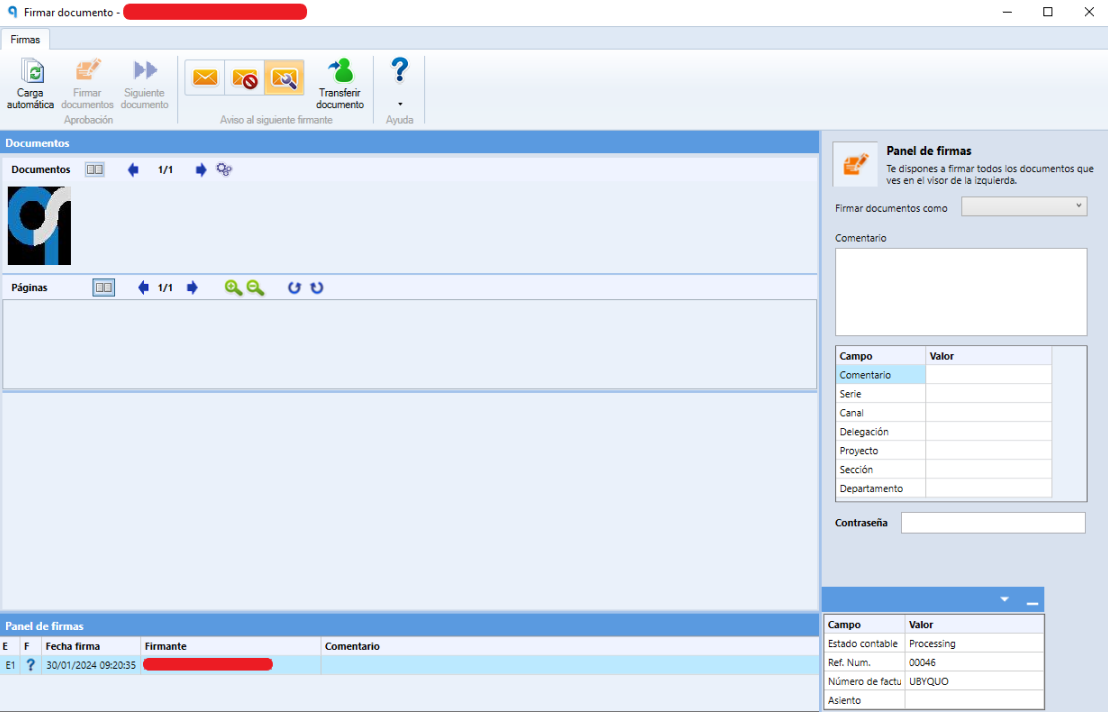
- In the Firmar documentos como (Sign documents as) field, select the corresponding status:
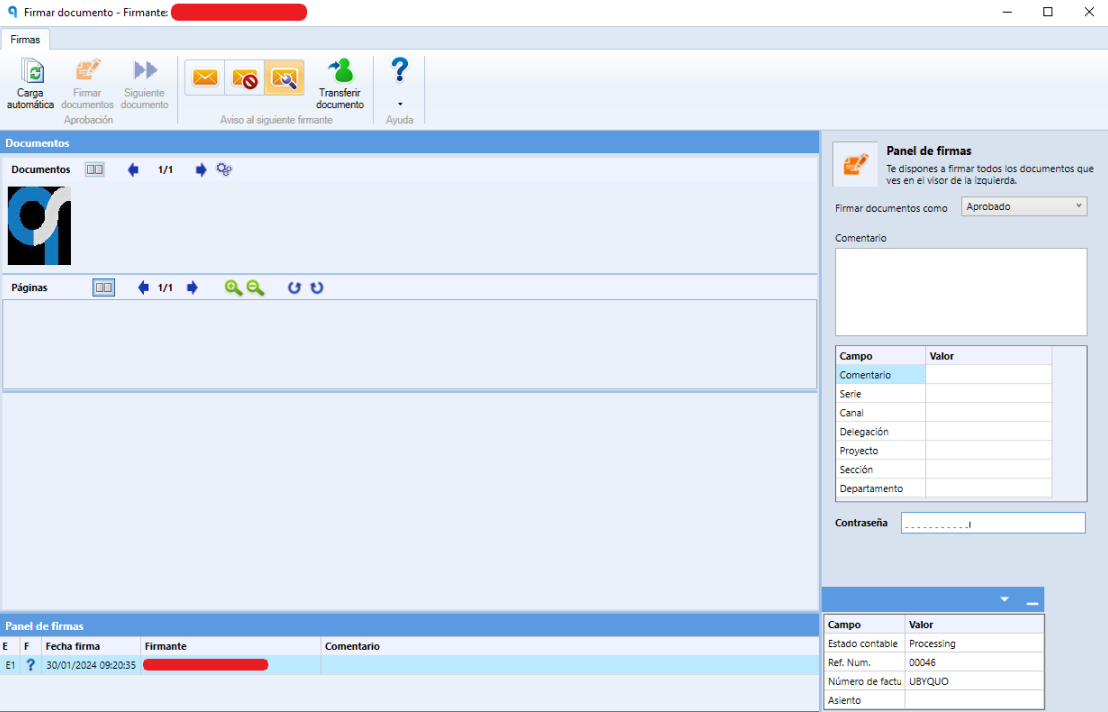
- — Aprobado (Approved): to accept the documents.
- — Rechazada (Rejected): to not approve the documents.
- If you wish, add a comment.
- Enter your Ubyquo password.
- Click Firmar documentos (Sign documents).
Continuous signing
If automatic loading is enabled, once the documents have been signed, the next pending documents will appear so you can keep signing without having to select them manually again.
2
Sign documents from CI Cloud (web)
You can also sign pending documents from your browser using CI Cloud.
Steps to sign
- Go to the Web or to the web address you were given.
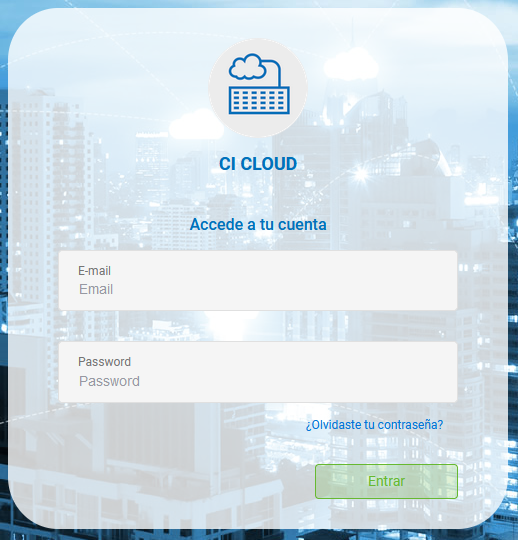
- Log in with your Ubyquo user and password.
- Go to the Workflows tab and make sure you are in Modo firma (Signing mode), located at the top.
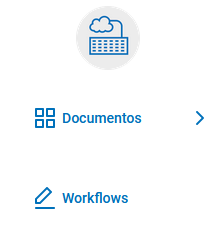
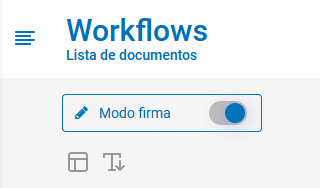
- Find the pending documents. A counter will show the number of documents you have pending to sign.
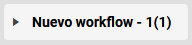
- Select the documents you want to sign and click Firmar documentos (Sign documents) at the top.

- In the signing window, set the following fields:
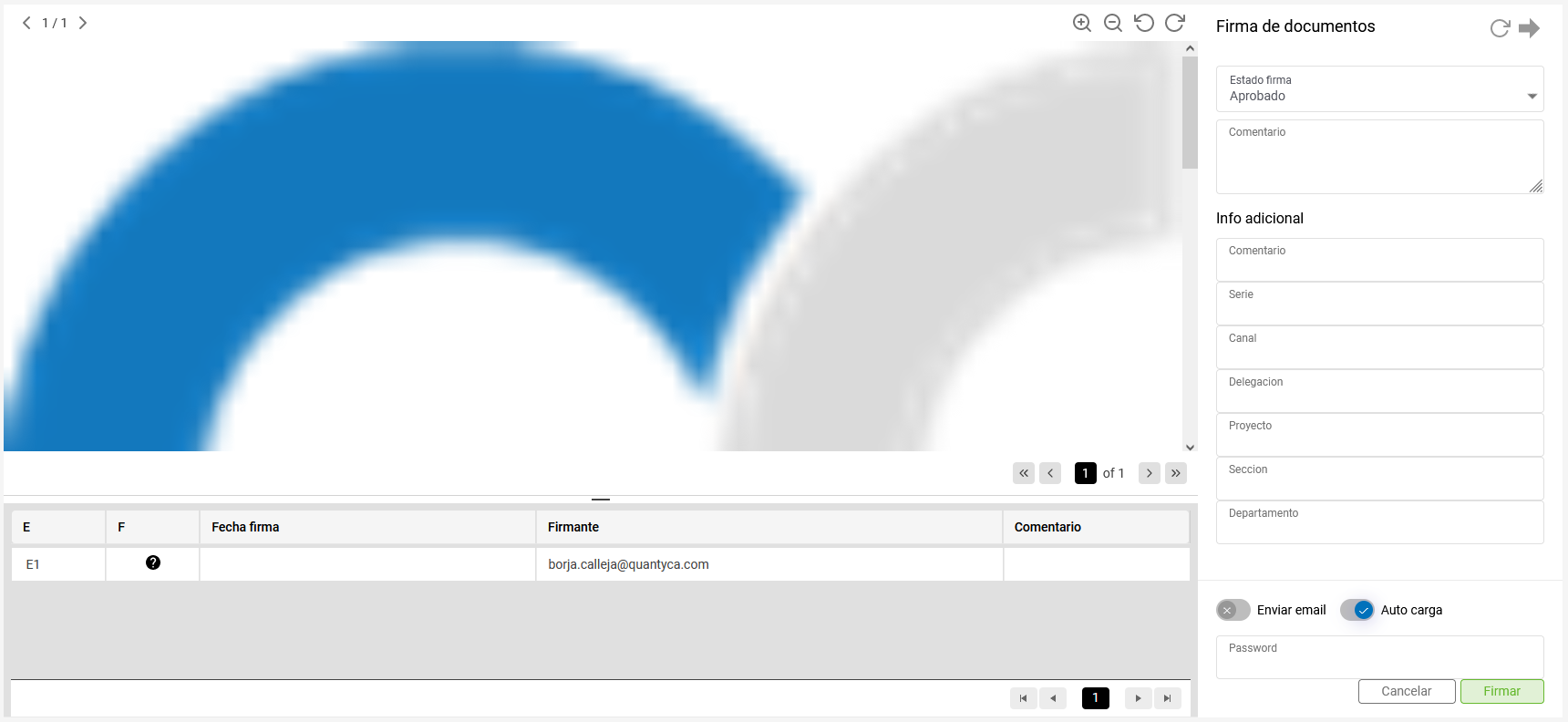
- — Estado firma (Signature status): select Aprobado (Approved) or Rechazada (Rejected).
- — Comentario (Comment): add a comment if you consider it necessary.
- — Contraseña (Password): enter your Ubyquo password.
- Click Firmar (Sign) at the bottom of the window.
Continuous signing and notifications
- If automatic loading is enabled, the next pending documents will appear so you can continue signing.
- Optionally, you can notify the next signer by e-mail.