Updated on October 9, 2026
Configuring company settings in Orders & Delivery Notes
Define how journal entries are generated, the allocation tolerances and the contra account for balancing entries.
The Ubyquo Invoices module lets you configure various settings to adapt the application's behavior to the needs of each company.
From the company settings, you can define how journal entries are generated, set tolerances for automatic allocation, and decide which contra account is used to balance entries.
Part 1 Open the company settings
- 1
Go to the Invoices module
Open the Invoices module and make sure you are in the fiscal year you want to configure.
- 2
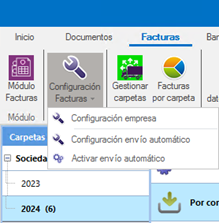
Open “Configuración empresa”
Click the Configuración Facturas (Invoice Settings) button and choose Configuración empresa (Company Settings).
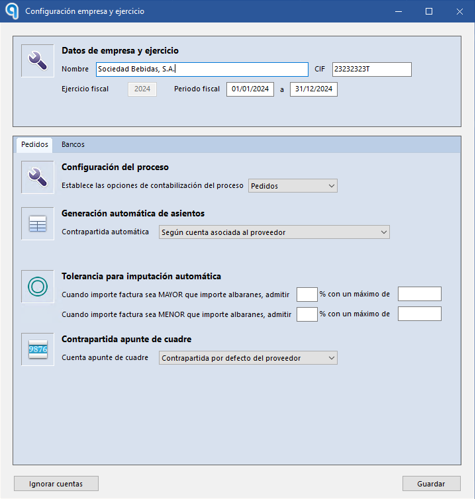
The settings window opens
It shows the different configuration options available.
Part 2 Adjust the settings
- 3
Choose how journal entries are generated
Define how Ubyquo should generate journal entries after extracting the data from the documents:
Según cuenta del proveedor (According to the supplier's account): the ledger account on the supplier recordSegún cuentas asociadas a los artículos (According to the accounts linked to the items): the ledger accounts of the items on the delivery note
- 4
Set the allocation tolerance
Set the threshold that allows small differences between the amount of the delivery notes and that of the invoices during automatic allocation.
This helps avoid errors or blocks when discrepancies are within the tolerance margin.

- 5
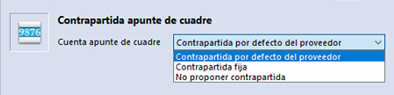
Choose the balancing contra account
Define how Ubyquo should handle contra accounts when journal entries are out of balance:
Contrapartida por defecto del proveedor (Supplier's default contra account): the supplier's ledger account settles the entryContrapartida fija (Fixed contra account): always the same account, which you enter in this windowNo proponer contrapartida (Do not suggest a contra account): none is assigned, and you enter it manually when balancing the entry