
Updated on September 23, 2026
Changing the Sage Logic user's password in Ubyquo
Update the new password in Ubyquo so it keeps connecting to the Sage databases.
If you have changed the password of the Logic user in Sage/SQL Server, you must also update this password in Ubyquo's connection settings.
If you do not update the password, Ubyquo will not be able to connect properly to the Sage databases.
Updating the Logic user's password
1
Go to Gestionar carpetas (Manage folders)
In Ubyquo:
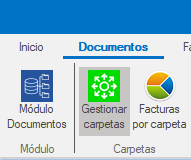
- Go to the Documentos (Documents) tab.
- At the top, click Gestionar carpetas (Manage folders).
2
Open the connection settings
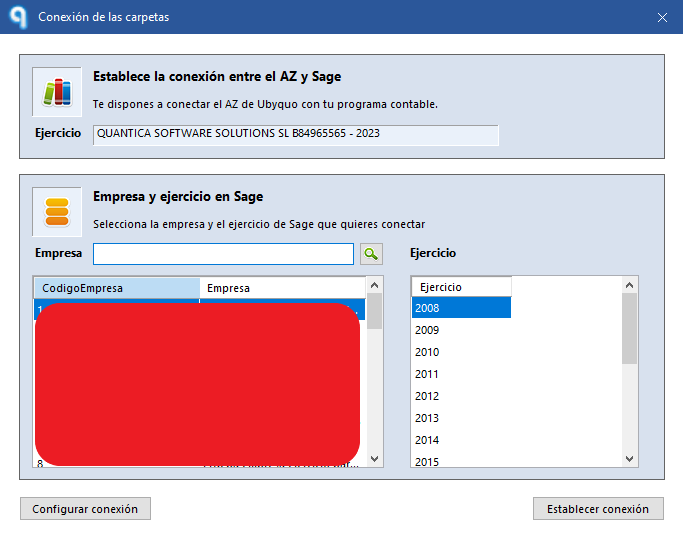
- Select Cambiar conexión a datos (Change data connection).

- Click Configurar conexión (Configure connection).
3
Enter the new password
In the connection settings:
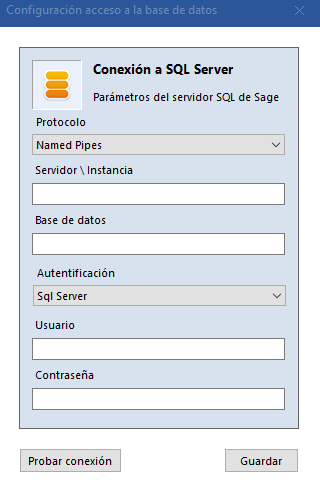
- Under Usuario (User), keep the user logic.
- Under Contraseña (Password), enter the new password you have set.
4
Test and save the connection
- Click Probar conexión (Test connection).
- If the connection works, click Guardar (Save).
5
Check the connection with the companies
After saving the settings, check that Ubyquo shows all the companies available.
If all the companies appear, the new password for the Logic user has been set up correctly in Ubyquo.