
Updated on 26 November 2026
Chapter 2. Creating users and setting up permission rules
Control who can access each department, module and folder by assigning profiles and permission rules.
Ubyquo lets you create users, assign profiles and set up permission rules to control access to departments, modules and folders.
Where
In the Inicio (Home) tab, top-left icon. If account administration does not open, see Account administration does not open in Ubyquo.
On video
Watch the whole process in the Ubyquo video tutorial (in Spanish) - User and rule management.
Part 1 Set up the profile's department (only once)
- 1
Open account administration
In the Inicio tab, click the top-left icon.

- 2
Go to “Perfiles de usuario”
Open Perfiles de usuario (User profiles).

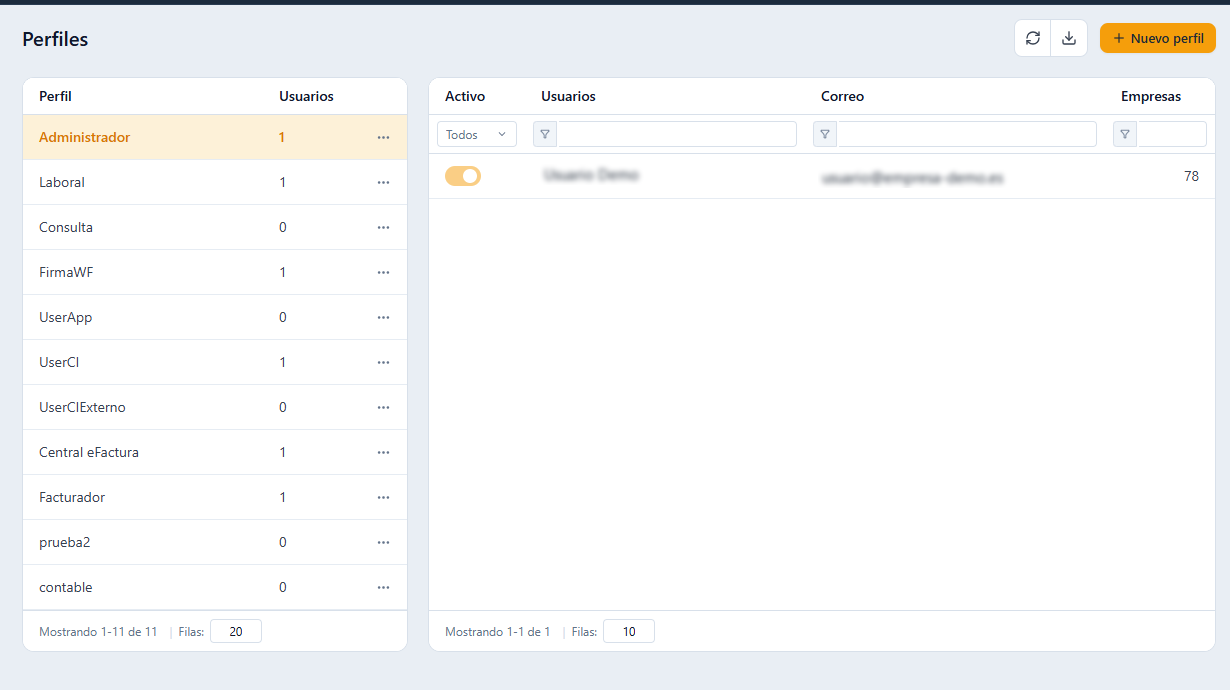
- 3
Edit the profile
Find the profile you are going to use, usually Contable (Accountant) or FirmaWF, click the three dots on the right and choose Editar (Edit).
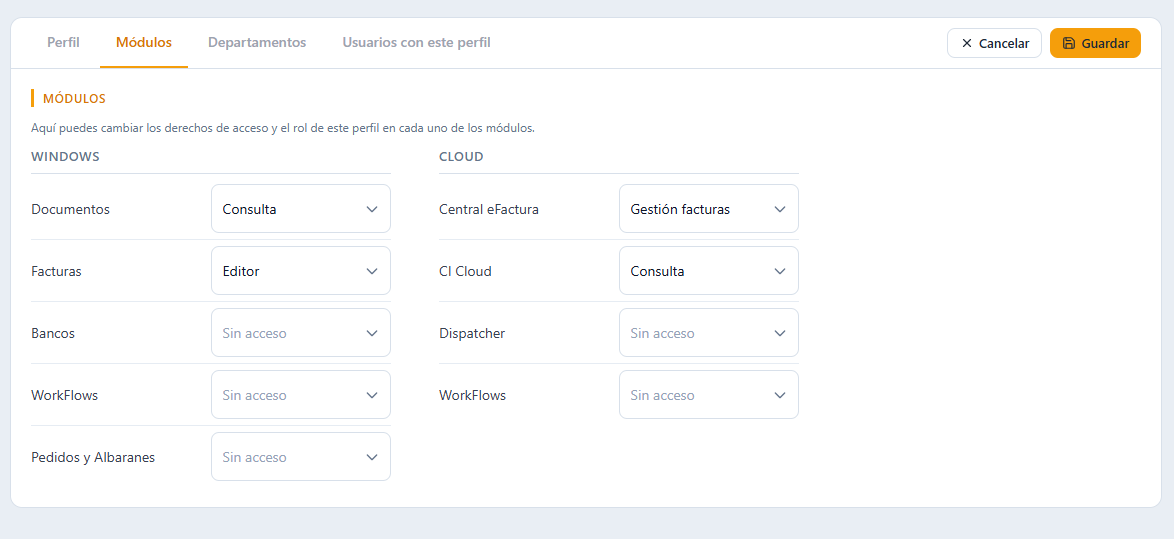
- 4
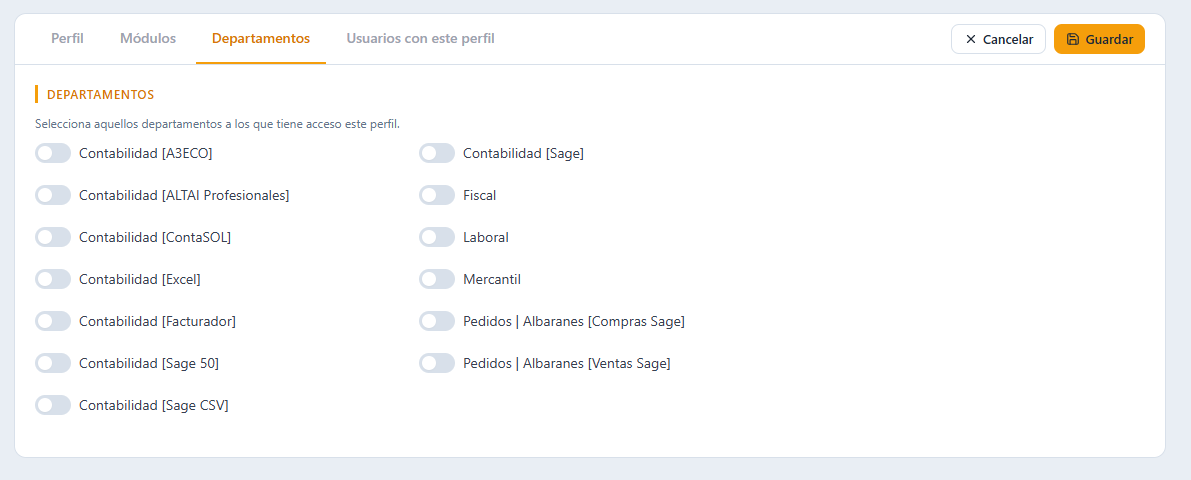
Assign the department
Select the department, usually the one for the accounting software you use. This links users to their folders and companies.
Part 2 Create a user
- 5
Open the “Usuarios” tab

- 6
Click “Nuevo usuario”
Click Nuevo usuario (New user)
 .
- 7
Fill in their details Required
Complete the user record:
First and last nameEmailPhone (optional)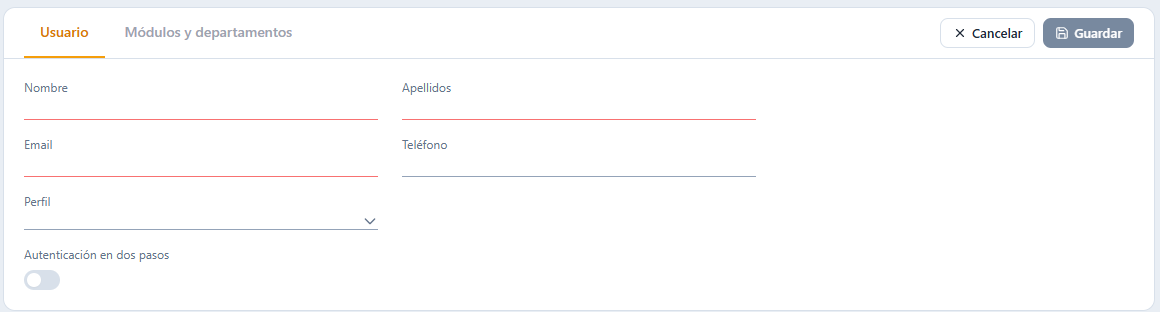
- 8
Assign the profile
Choose the Perfil de usuario (User profile), which determines which modules and departments the user can access.
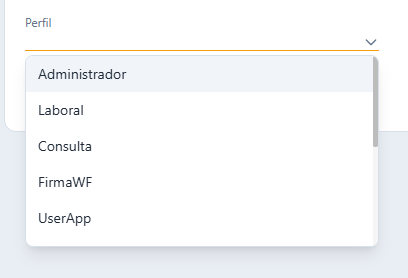
The password arrives by email
The user receives their login password by email automatically.
Part 3 Give access to folders (“Permitir” rules)
- 9
Edit the user
Select the user and click Detalles (Details)
 . From here you can change their settings and add their access rules.
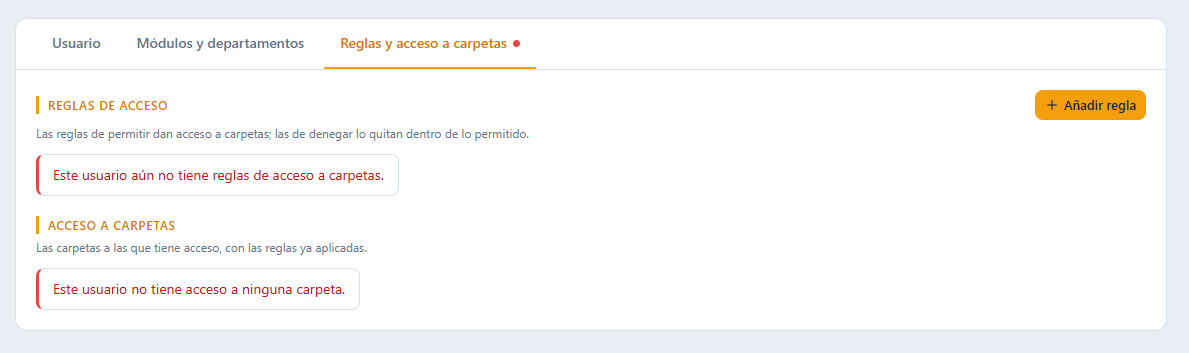
- 10
Create a “Permitir” rule
Click Añadir regla (Add rule)
 , choose the Permitir (Allow) type and click Siguiente (Next).
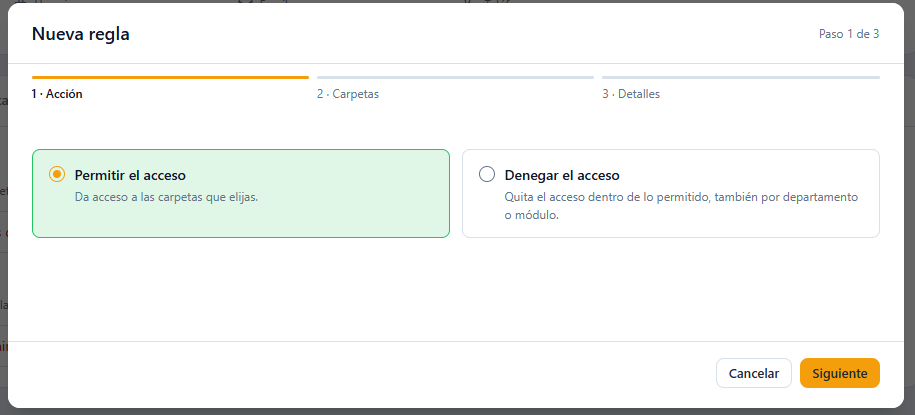
- 11
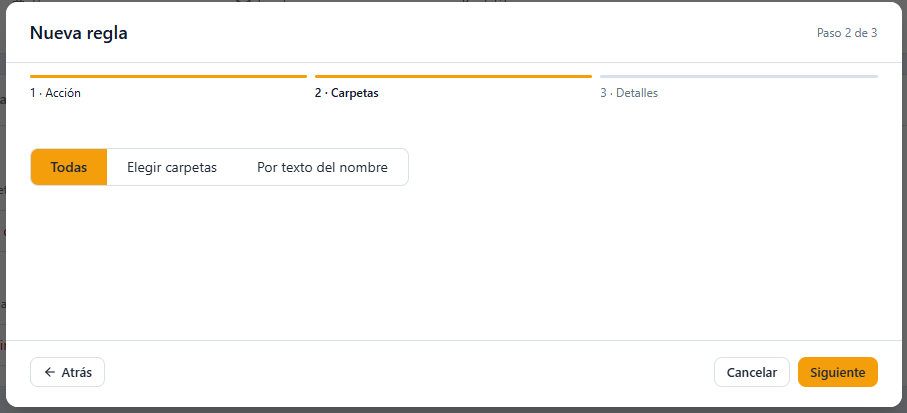
Choose the folders
Choose Todas (All) and click Siguiente.
- 12
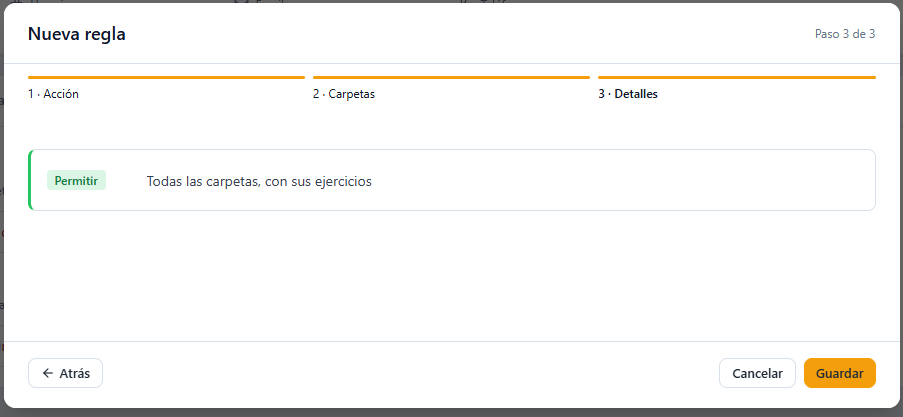
Save the rule
Click Guardar (Save).
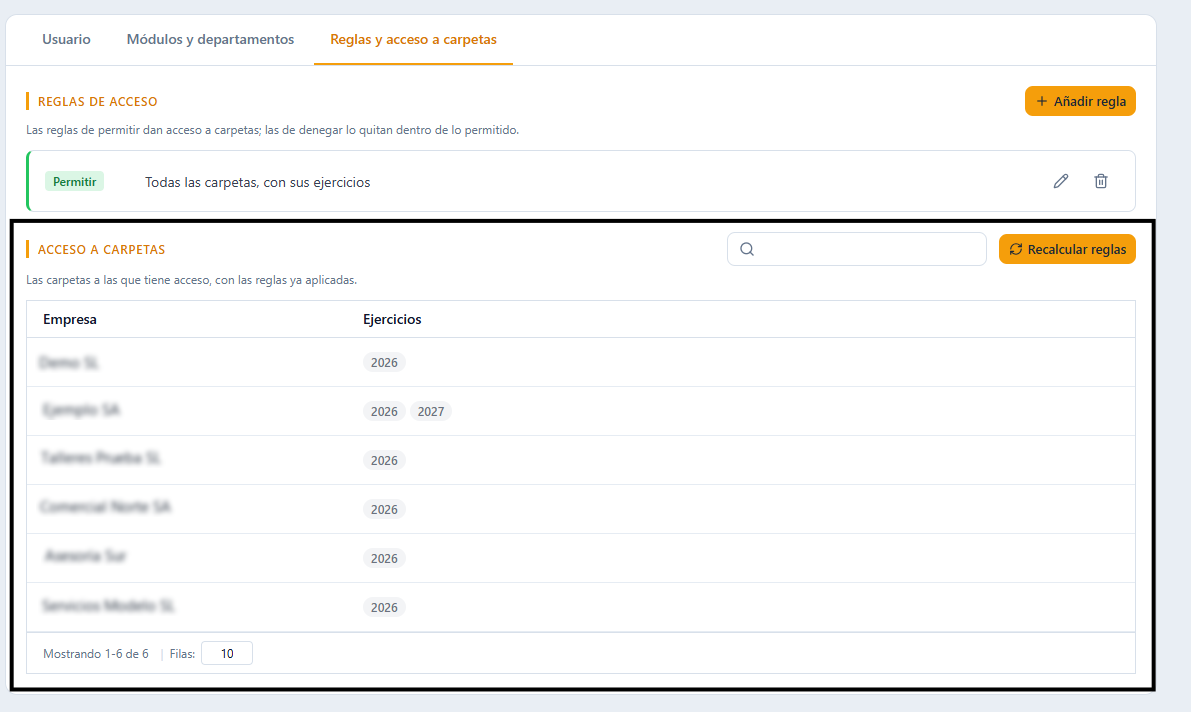
You will see the folders with the rules applied
Part 4 Restrict access (“Denegar” rules)
- 13
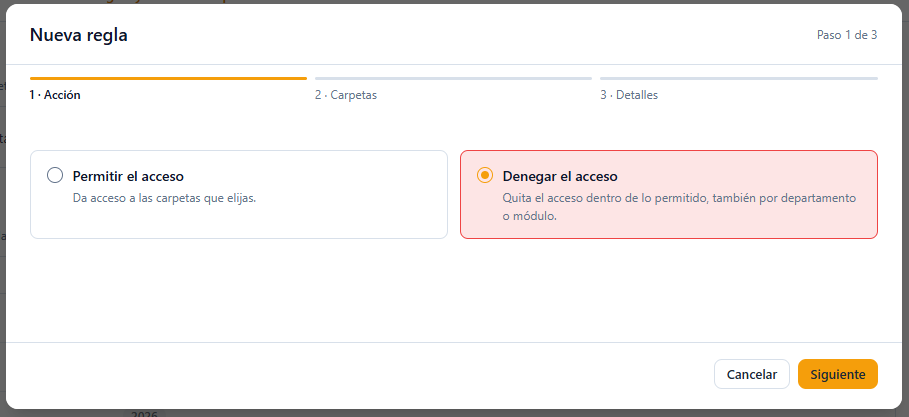
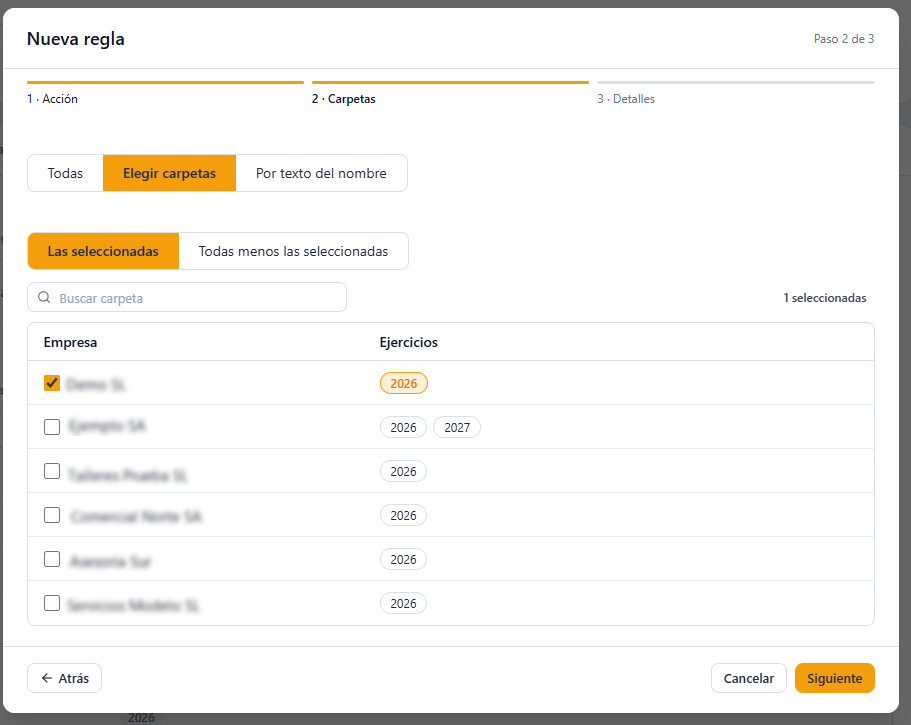
Create a “Denegar” rule
In the user's record, click Añadir regla, choose the Denegar (Deny) type and select the folders you want to deny access to.
Part 5 Apply and manage the rules
- 14
Recalculate the rules
After changing permissions, click Recalcular reglas (Recalculate rules)
 to update the user's access.
- 15
Edit or delete rules
From the user's settings you can manage their rules: Editar regla (Edit rule)
 changes an existing rule and Borrar regla (Delete rule)
 removes a rule you no longer need.