
Updated on September 24, 2026
Wrong company name when receiving invoices
What to do when two third parties share the same NIF/CIF and the company name appears wrong on the invoices.
If the company name appears incorrectly when you receive invoices through automatic posting, a possible cause is that there are two third parties with the same NIF/CIF in Ubyquo and in the accounting software.
To fix this, you need to merge the third party in the accounting software, synchronize the Chart of Accounts, and then force an update of the affected invoices in Ubyquo.
1
Fix the third party in the accounting software
In the accounting software:
- Find the third party that appears duplicated with the same NIF/CIF.
- Correct the name to unify the third party's information.
- Run a full synchronization of the Chart of Accounts with Ubyquo.
2
Update the company's CIF in Ubyquo
In Ubyquo:
- Go to the Facturas (Invoices) tab.
- Go to Configuración de Facturas > Configuración de Empresa (Invoice settings > Company settings).
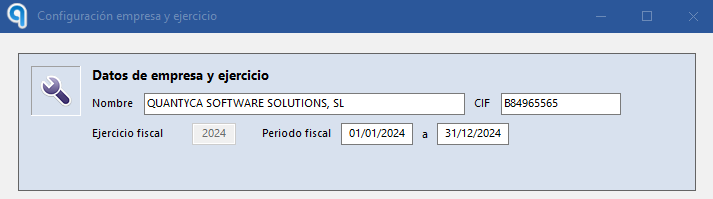
- In the CIF field, delete the last digit of the CIF. Important: remember the digit you deleted so you can enter it again afterwards.
- Click Guardar (Save).
- Open Configuración de Empresa again.
- Enter the correct CIF again, including the digit you had deleted.
- Click Guardar.
3
Update the name on the affected invoices
Once the CIF has been updated:
- Go to the Facturas tab.
- Select all the affected invoices.
- Right-click the selection and choose Cambiar de empresa o ejercicio (Change company or fiscal year).
- In the window that opens, select the same company and the same fiscal year the invoices currently have.
- Click Guardar.
This process forces a reconnection with the updated Chart of Accounts, so the company name is updated correctly on the affected invoices.