
Updated on September 24, 2026
Invoices are not imported into the ERP: causes and solution
Check the analytical fields, symbols and invoice number when the export to the ERP fails.
If an invoice from Ubyquo is not imported correctly into the ERP or accounting software, check the following points before exporting again.
Check the analytical fields
If the company uses analytical fields, check that they are filled in correctly in Ubyquo.
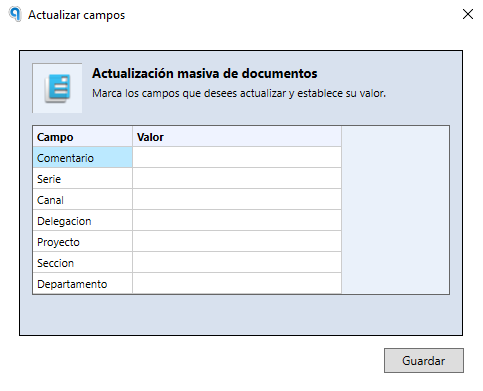
In particular, check that the selected values match the invoice and that no mandatory fields are left to complete.
Check for invalid symbols
Check the invoice number and make sure it does not contain symbols that could prevent it from being exported.
For example, avoid symbols such as:
{}
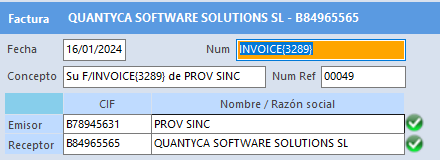
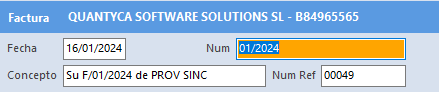
Check the invoice number
Verify that the invoice number has been recognized correctly.
In some cases, the number may be misread as a date, so you need to review and correct the value before exporting.
Check the due items
Check whether the invoice has due items already recorded in the accounting software.
If there are duplicated or previously recorded due items, you can:
- Delete the due item in Ubyquo before exporting the invoice again.
- Alternatively, delete the due item directly in the accounting software.
Once you have reviewed these points, try the export of the invoice to the ERP or accounting software again.