
Updated on November 5, 2026
Ubyquo installation manual for Sage 50 US
Connect a Ubyquo folder to a Sage 50 US company (formerly Peachtree): data access, authorization and credentials.
This manual explains how to connect a Ubyquo folder to a Sage 50 US company (Sage 50 Accounting, formerly Peachtree). The connection uses two different credentials:
- Sage 50 user (for example, Admin): the user you log in to Sage 50 with. Ubyquo uses it to list the companies and open them.
- Peachtree database user: gives access to the company data from outside Sage 50 (ODBC). Ubyquo stores it for each company.
Prerequisites
- Sage 50 US installed and the company accessible from the computer where Ubyquo runs.
- The Sage 50 database service (Pervasive/Actian) running.
- Ubyquo installed and the fiscal year folder created (in the example, SAGE 50 0123456789 - 2026).
- A Sage 50 user with administrator permissions and a password. If the user or the password is empty, Ubyquo does not show the companies. Users are managed in Maintain > Users > Set Up User Security, User List tab.
Process overview
- 1. Sage 50: enable external access to the data and set a password for the Peachtree user.
- 2. Ubyquo: save the Sage 50 user.
- 3. Sage 50: authorize Ubyquo to access the company.
- 4. Ubyquo: save the company's database user.
- 5. Ubyquo: choose the fiscal year and establish the connection.
Part 1 Enable data access in Sage 50
- 1
Open the company in Sage 50
Open Sage 50 with an administrator user and open the company you are going to connect.
- 2
Open user security
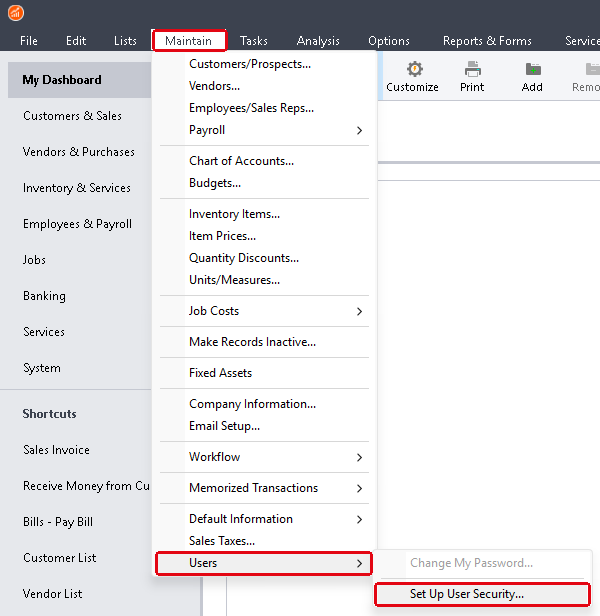
Go to Maintain > Users > Set Up User Security...
- 3
Open the Data Access/Crystal Reports tab
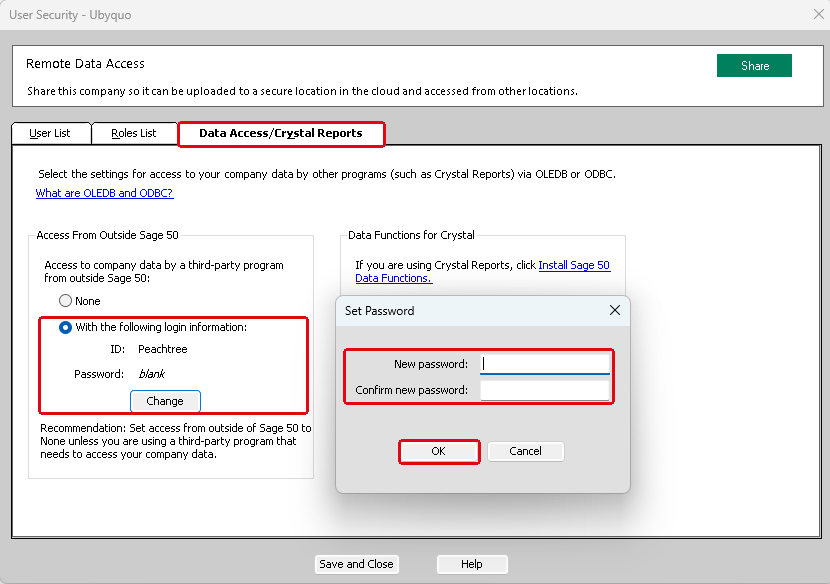
In the User Security window, open the Data Access/Crystal Reports tab.
- 4
Allow access from outside Sage 50
Under Access From Outside Sage 50, select With the following login information. The ID is always Peachtree.
- 5
Set a password for the Peachtree user
Click Change, type the password in New password and Confirm new password, and click OK.
Important: by default the Peachtree user has no password (it shows as blank). Keep the password you set: you will need it in part 4.
- 6
Save the changes
Click Save and Close.
Part 2 Set up the Sage 50 user in Ubyquo
- 7
Open the folder connection
In Ubyquo, open the Conexión de las carpetas (Folder connection) window of the fiscal year you are going to connect. If there are no credentials yet, the message «No se ha configurado usuario y contraseña de Sage 50» (Sage 50 user and password not configured) appears and the company list is empty.
- 8
Click «Configurar usuario»
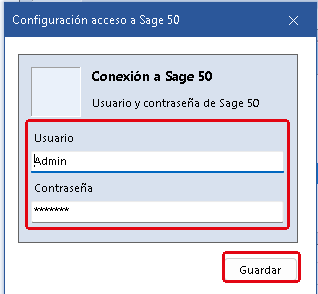
Click Configurar usuario (Set up user). The Configuración acceso a Sage 50 (Sage 50 access settings) window opens.
- 9
Enter the Sage 50 user
Enter the Sage 50 Usuario (User), for example Admin, and its Contraseña (Password), and click Guardar (Save).
The companies are loaded
Ubyquo confirms with «Credenciales guardadas correctamente» (Credentials saved successfully) and loads the list of Sage 50 companies.
Part 3 Authorize Ubyquo in Sage 50
The first time you select a company in the list, Ubyquo asks Sage 50 for permission to access it. Until permission is granted, Ubyquo shows the message Autorización requerida en Sage 50 (Authorization required in Sage 50) and cancels the operation.
- 10
Select the company
Select the company in the Empresa (Company) list of the Conexión de las carpetas (Folder connection) window.
- 11
Switch to Sage 50
If the message Autorización requerida en Sage 50 appears, close it and switch to Sage 50. If Sage 50 already had that company open, close it and open it again so that the request appears.
- 12
Always allow access
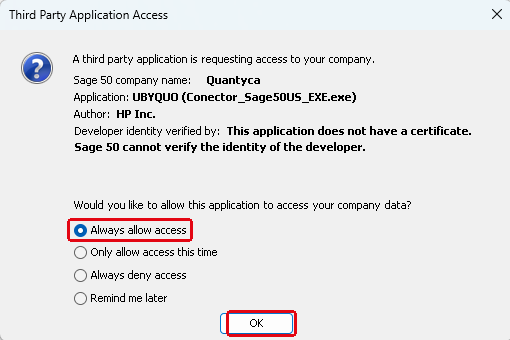
In Sage 50, the Third Party Application Access window appears with the application UBYQUO (Conector_Sage50US_EXE.exe). Select Always allow access and click OK.
Important: the warning «This application does not have a certificate» is normal and does not prevent the connection. Do not choose Always deny access: Sage 50 would block Ubyquo in that company and the connection would fail with «Acceso denegado» (Access denied). With Only allow access this time, you would have to authorize it again on every access.
- 13
Select the company again
Go back to Ubyquo and select the company again. The Ejercicio (Fiscal year) list is filled with the available fiscal years.
Part 4 Set up the database user in Ubyquo
- 14
Click «Configurar Empresa»
With the company selected in the list, click Configurar Empresa (Set up company). The Configurar usuario de base de datos (Set up database user) window opens with the company name.
- 15
Enter the Peachtree user
Enter Peachtree in Usuario (User) and, in Contraseña (Password), the one you set in part 1. Click Guardar (Save).
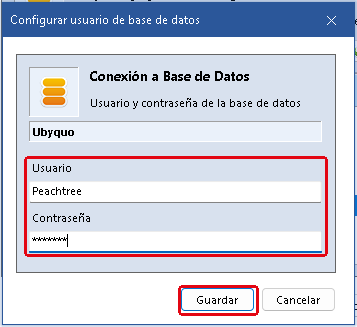
Ubyquo tests the connection
Ubyquo tests the ODBC connection before saving. If it works, it shows «Credenciales de base de datos guardadas correctamente» (Database credentials saved successfully) with the company name.
These credentials are saved for each company. If you connect several Sage 50 companies, repeat this part for each one.
Part 5 Establish the connection
- 16
Choose the company and the fiscal year
Select the Sage 50 company and fiscal year in the Empresa (Company) and Ejercicio (Fiscal year) lists.
- 17
Click «Establecer conexión»
Click Establecer conexión (Establish connection). The Ubyquo folder is now connected to that company and fiscal year.
Done! The Ubyquo folder is now connected to Sage 50 US.
Credentials summary
| Credential | Where it is defined in Sage 50 | Where it is entered in Ubyquo |
|---|---|---|
| Sage 50 user (e.g. Admin) | Maintain > Users > Set Up User Security, User List tab | Configurar usuario button (Sage 50 access settings window) |
| Peachtree database user | Maintain > Users > Set Up User Security, Data Access/Crystal Reports tab | Configurar Empresa button (Set up database user window), once per company |
Troubleshooting
| Message or symptom | Cause | Solution |
|---|---|---|
| «No se ha configurado usuario y contraseña de Sage 50» (Sage 50 user and password not configured) and empty company list | The Sage 50 user or its password is missing. | Repeat part 2. The user must have a password in Sage 50. |
| «Autorización requerida en Sage 50» (Authorization required in Sage 50) | Ubyquo does not have permission to access the company yet. | Follow part 3. If the window does not appear in Sage 50, close Sage 50 and open the company again. |
| «Acceso denegado. El usuario ha rechazado explícitamente el acceso a la empresa.» (Access denied: the user explicitly refused access to the company) | Always deny access was chosen in Sage 50. | Access for Ubyquo has to be granted again in Sage 50. Contact Quantyca support. |
| «Debe seleccionar una empresa antes de configurar las credenciales de base de datos.» (You must select a company before setting up the database credentials) | Configurar Empresa was clicked with no company selected. | Select the company in the list and repeat part 4. |
| «La conexión ODBC a la empresa … ha fallado.» (The ODBC connection to the company … failed) | Wrong Peachtree password, external access set to None or the Pervasive/Actian service stopped. | Check part 1 and enter the password again in part 4. Make sure the Sage 50 database service is running. |